


Copying Blocks Between Sections on Squarespace
If you’ve ever built a website in Squarespace, you may have noticed that copying blocks between sections isn’t immediately obvious.
The good news is that Squarespace makes it easy to reuse content blocks across your page once you know how.
Whether you want to duplicate a text box, a design element, or an entire grouped layout, this quick guide will show you exactly how to copy and paste blocks between sections in Squarespace.
Why Copy Blocks Between Sections in Squarespace?
Reusing blocks can save a huge amount of time when designing your website.
For example, you might want to reuse:
call-to-action sections
text and button combinations
testimonials
styled headings
design elements like shapes or background blocks
Instead of rebuilding the same layout every time, you can simply copy and paste the existing block.
This keeps your design consistent and speeds up your workflow.
Start, scale & systemise your web design agency.
I bootstrapped my agency from zero to seven figures. The Margin is the operating system I wish I'd had.
Join The Margin


Need an expert to build your Squarespace website?
Book a free kick-off call with our team to discuss your project requirements in detail.
How to Copy a Single Block in Squarespace
If you want to copy one block, such as a text block, follow these steps:
1. Open the Squarespace Editor
Go into the page editor where your content is located.
2. Select the Block
Click on the block you want to reuse.
For example, this could be a text block.
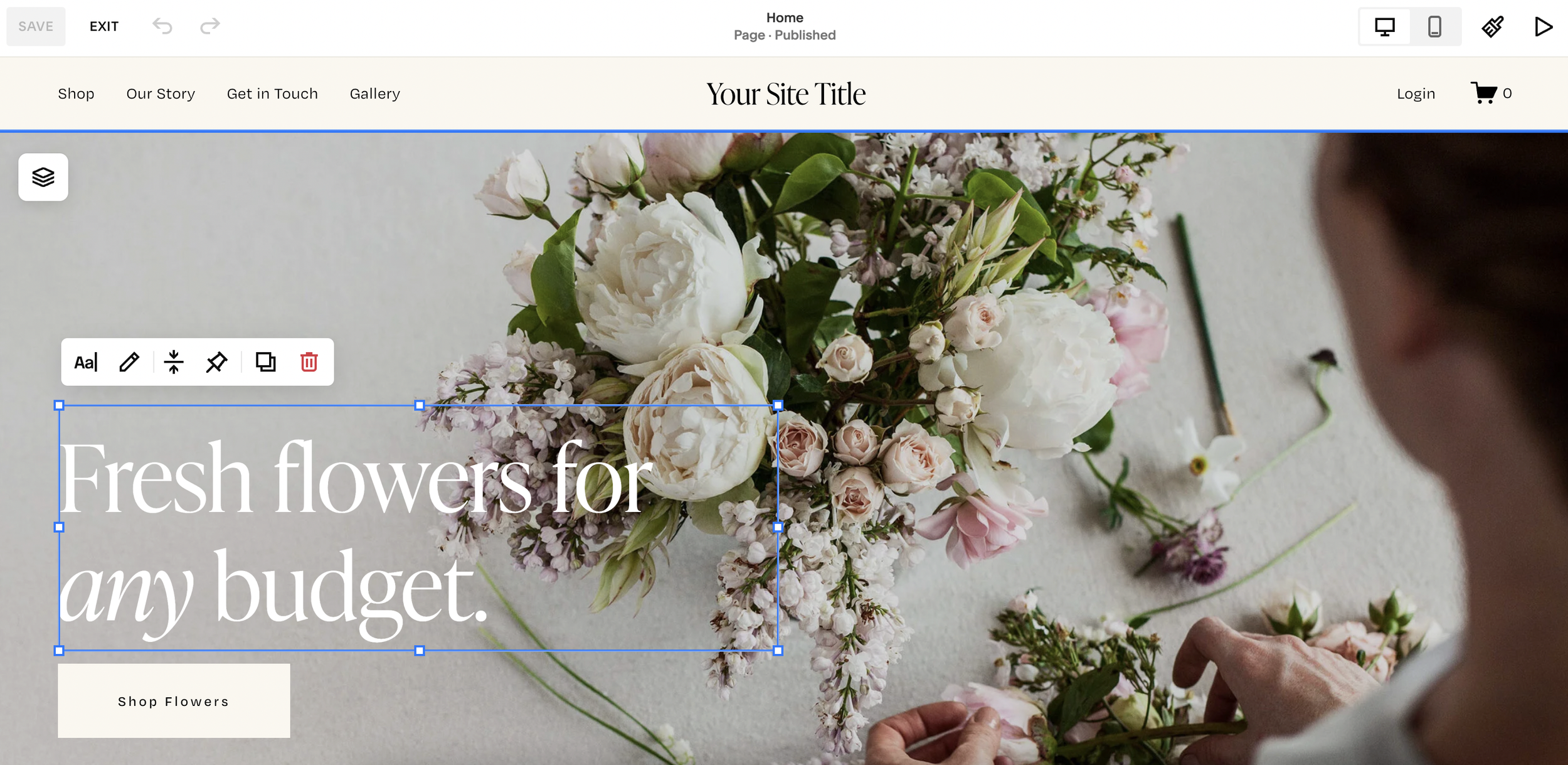
3. Copy the Block
Use the keyboard shortcut:
Mac: Command + C
Windows: Ctrl + C
4. Navigate to the New Section
Click inside the section where you want the copied block to appear.
5. Paste the Block
Use:
Mac: Command + V
Windows: Ctrl + V
The block will now appear in the new section.
How to Copy Multiple Blocks Together
Sometimes your design includes more than one block working together.
For example, you may have:
a text block
a shape block behind it
a button underneath
If you only copy one element, the design effect may be lost.
Here’s how to copy multiple blocks:
1. Highlight All Blocks
Click and drag your cursor to select all the blocks you want to move.
For example, select both the text block and the shape block.
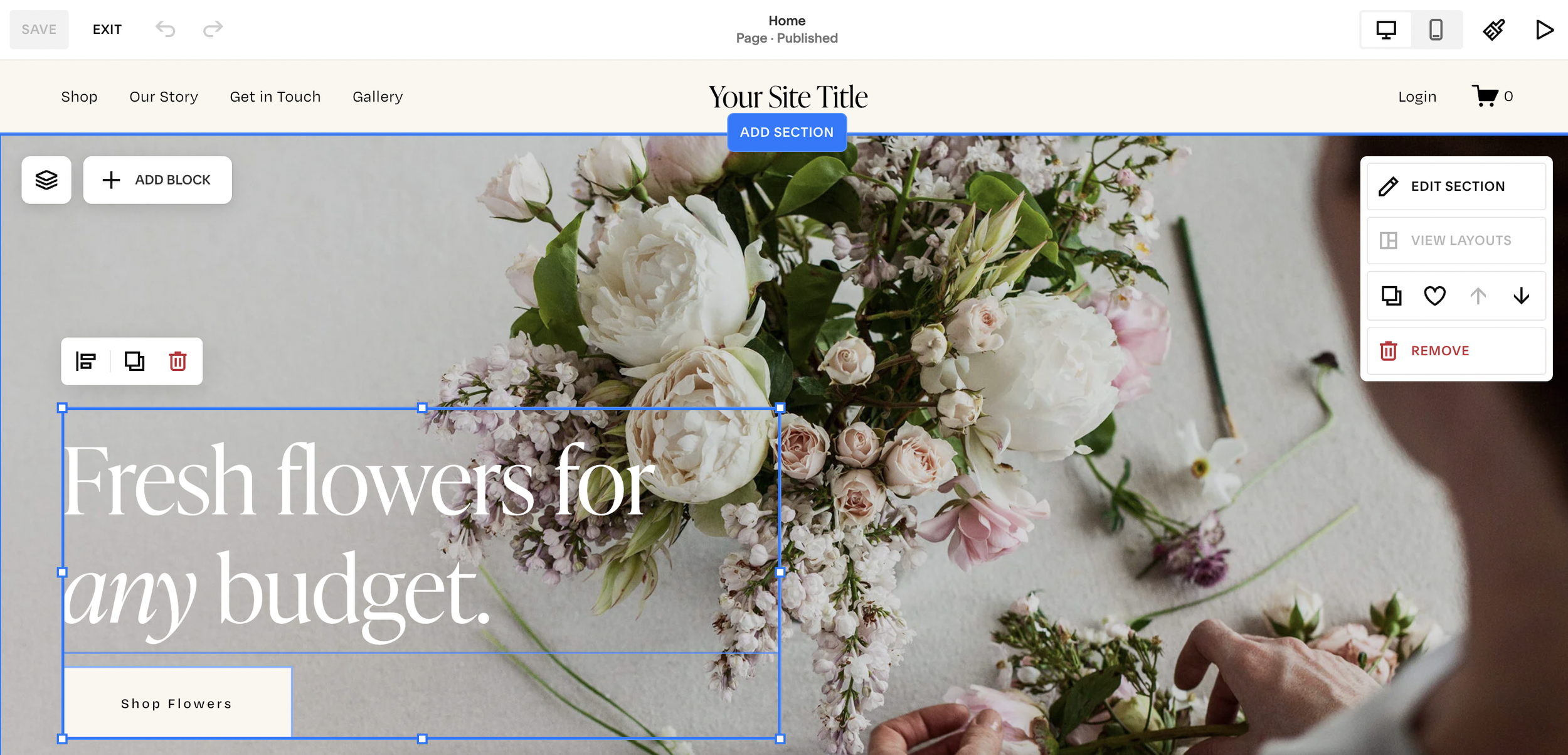
2. Copy the Selection
Use the same commands as above.
3. Paste into Another Section
Click in the destination section and paste.
Squarespace will bring both elements over together.
This is the easiest way to preserve your layout styling.
How to Reposition Copied Blocks
After pasting, you can drag the blocks anywhere within the section.
Simply:
click and drag the blocks into place
use the arrow keys for precise positioning
fine-tune the spacing
Once you’re happy with the placement, click Save and then Exit.
Can You Repeat This Across Multiple Sections?
Yes, and this is one of the best ways to speed up page design.
You can repeat the exact same process as many times as needed:
highlight the blocks
copy
move to another section
paste
reposition
save
This is perfect for maintaining a consistent visual style throughout your website.
Pro Tip: Use This for Faster Website Design
Copying blocks between sections is especially useful when creating:
landing pages
service pages
portfolio layouts
repeated promotional banners
contact callouts
Instead of rebuilding each section manually, simply duplicate what already works.
This improves both design consistency and workflow efficiency.
Final Thoughts
Copying blocks between sections in Squarespace is a simple but powerful feature once you know where to find it.
Whether you’re duplicating a single text block or an entire grouped design, using copy and paste can dramatically speed up your site-building process.
If you’re regularly updating your Squarespace website, this trick is a must-know.
