


How to Add Light & Dark Favicons on Squarespace
A favicon might be small, but it plays a big role in branding and usability. If your website doesn’t adapt to dark mode browsers, your logo can easily disappear or become hard to see in browser tabs.
Luckily, Squarespace makes it simple to serve different favicon versions for light and dark mode, so your branding stays clear no matter how visitors browse.
In this guide, you’ll learn exactly how to set up light and dark favicons in Squarespace and why it matters.
Why You Need Separate Light and Dark Favicons
More users are browsing in dark mode than ever before. The problem?
Dark logos disappear on dark browser tabs
Light logos can look washed out on light backgrounds
Branding becomes inconsistent across devices
By using two favicon versions, you ensure:
Better visibility in all browser themes
Stronger brand recognition
A more polished, professional website appearance
How Squarespace Handles Light and Dark Favicons
Squarespace allows you to upload two versions of your favicon:
Default (Light Mode browsers): Typically your dark logo
Dark Mode browsers: Your light logo
The system automatically switches between them depending on the user’s browser settings.
Start, scale & systemise your web design agency.
I bootstrapped my agency from zero to seven figures. The Margin is the operating system I wish I'd had.
Join The Margin


Need an expert to build your Squarespace website?
Book a free kick-off call with our team to discuss your project requirements in detail.
Step-by-Step: Add Light and Dark Favicons in Squarespace
1. Go to Your Website Settings
From your Squarespace dashboard:
Navigate to Settings
Click Website
This is where global site settings are managed.
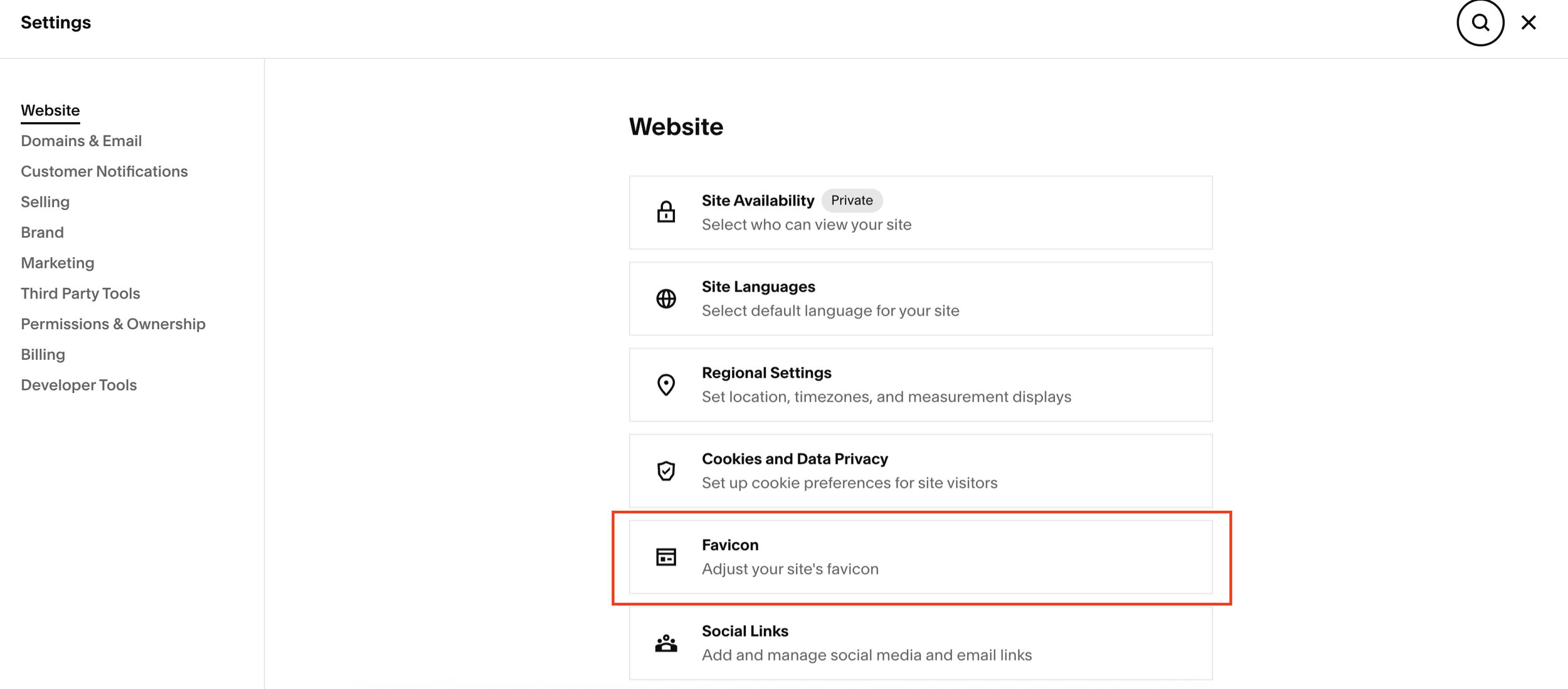
2. Open the Favicon Settings
Inside Website settings:
Click Favicon
This is where you upload and manage your browser tab icon.
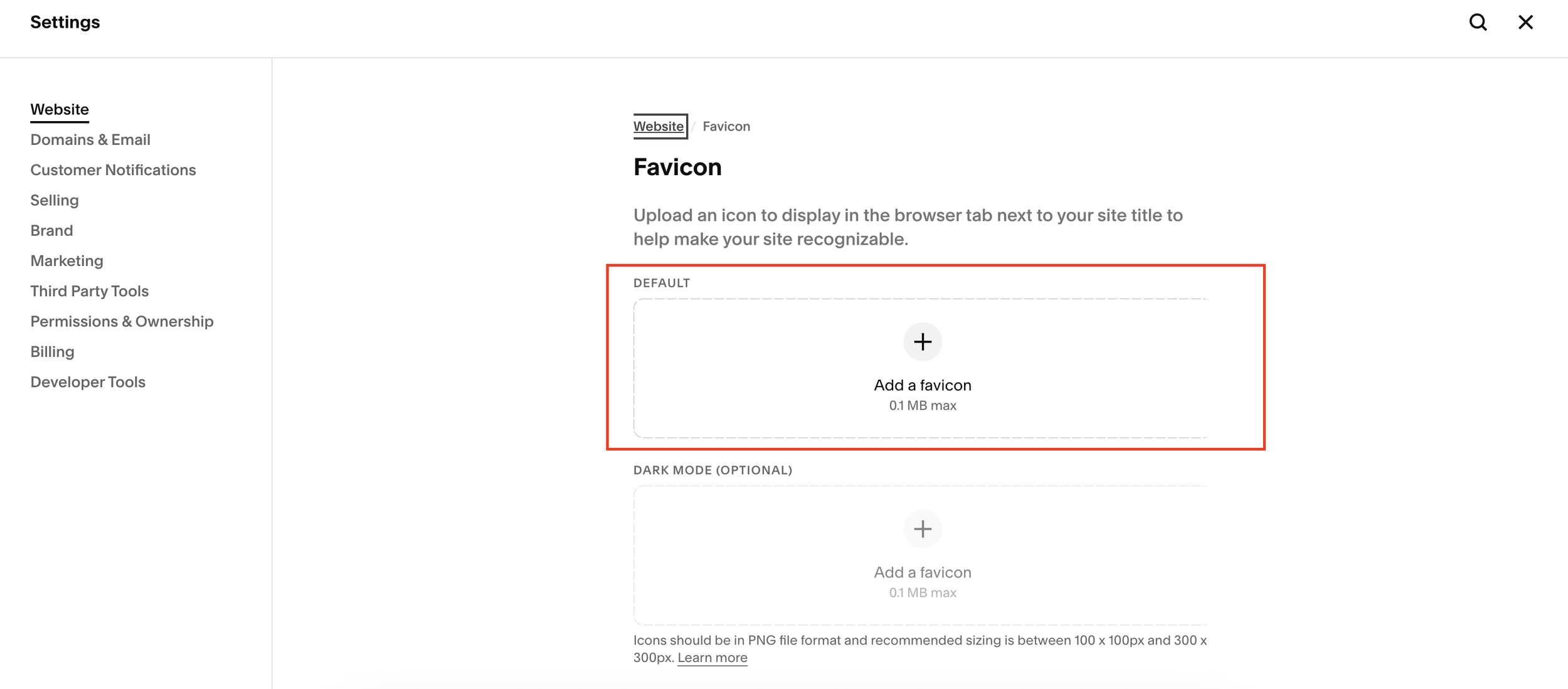
3. Upload Your Default Favicon (Light Mode)
Your default favicon is used for light backgrounds.
Upload your dark version of the logo
This ensures visibility in standard (light mode) browsers
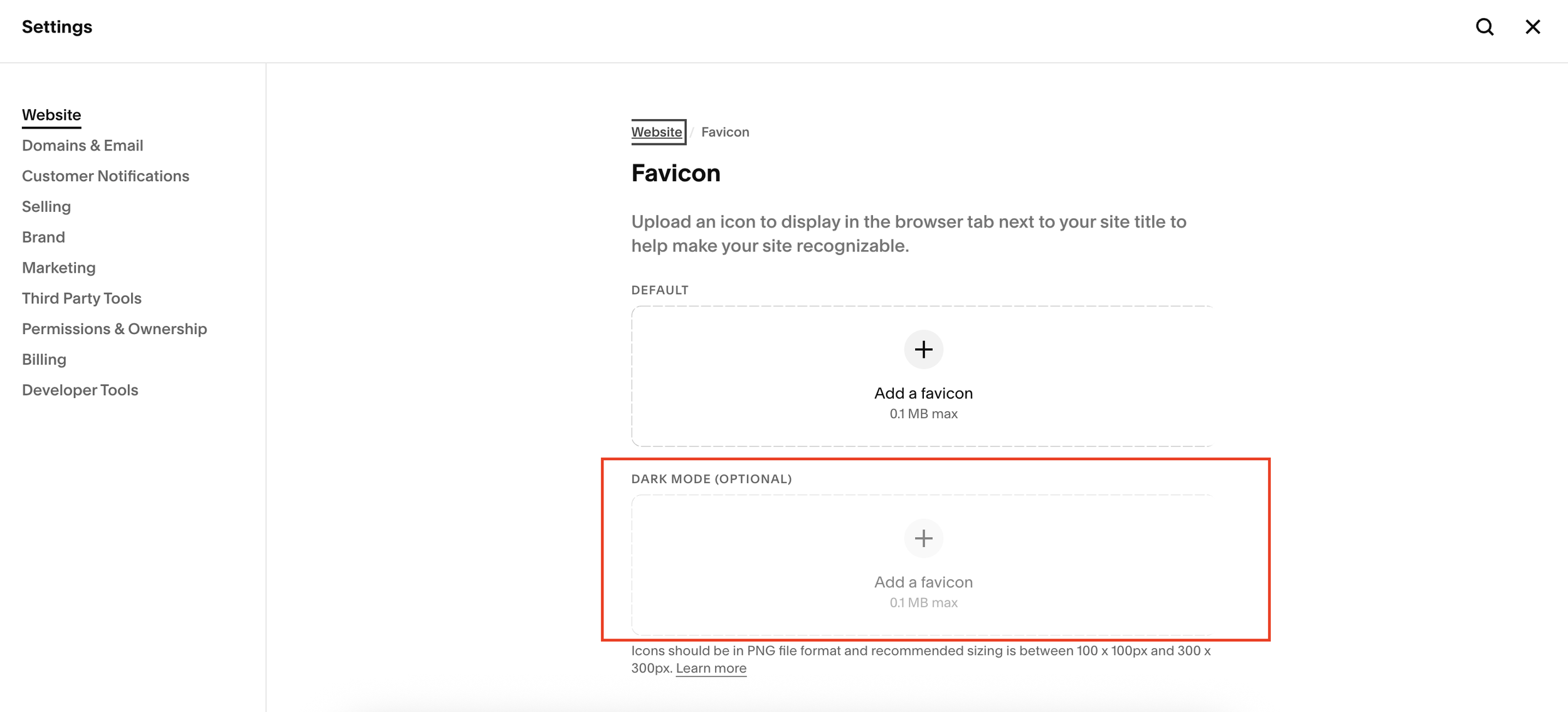
4. Upload Your Dark Mode Favicon
Next, set your dark mode version:
Upload your light-colored logo
This will display when users are browsing in dark mode
5. Save and Preview
Once both files are uploaded:
Save your changes
Open your site in both light and dark browser modes
Confirm the favicon switches correctly
Best Practices for Favicon Design
To get the best results:
Keep designs simple and minimal
Ensure strong contrast between logo and background
Avoid small text that becomes unreadable at favicon size
Test on multiple browsers (Chrome, Safari, Edge)
Final Thoughts
Adding both light and dark favicons is a small update that makes a big difference in user experience. It ensures your branding stays visible and consistent, regardless of how visitors view your site.
If you're building a site with Squarespace, this is one of the easiest ways to instantly make your website feel more modern and polished.
