


Squarespace New Page Addition Flow Explained
Squarespace is known for regularly updating its interface, and recently, it made a significant change to how you add pages and collections.
If you’ve been struggling to find options like blogs, shops, or other page types, you’re not alone. This guide breaks down exactly what changed and where everything now lives.
What Changed in the Squarespace Page Menu?
Previously, adding content in Squarespace was simple and clear:
Click the “+” button
Choose between a blank page or a collection (like a blog or shop)
Now, the process looks completely different.
Instead of those straightforward options, you’ll see categories like:
Introduce
Sell
Showcase
And more…
At first glance, this can feel confusing, but once you understand the structure, it actually becomes quite intuitive.
Start, scale & systemise your web design agency.
I bootstrapped my agency from zero to seven figures. The Margin is the operating system I wish I'd had.
Join The Margin


Need an expert to build your Squarespace website?
Book a free kick-off call with our team to discuss your project requirements in detail.
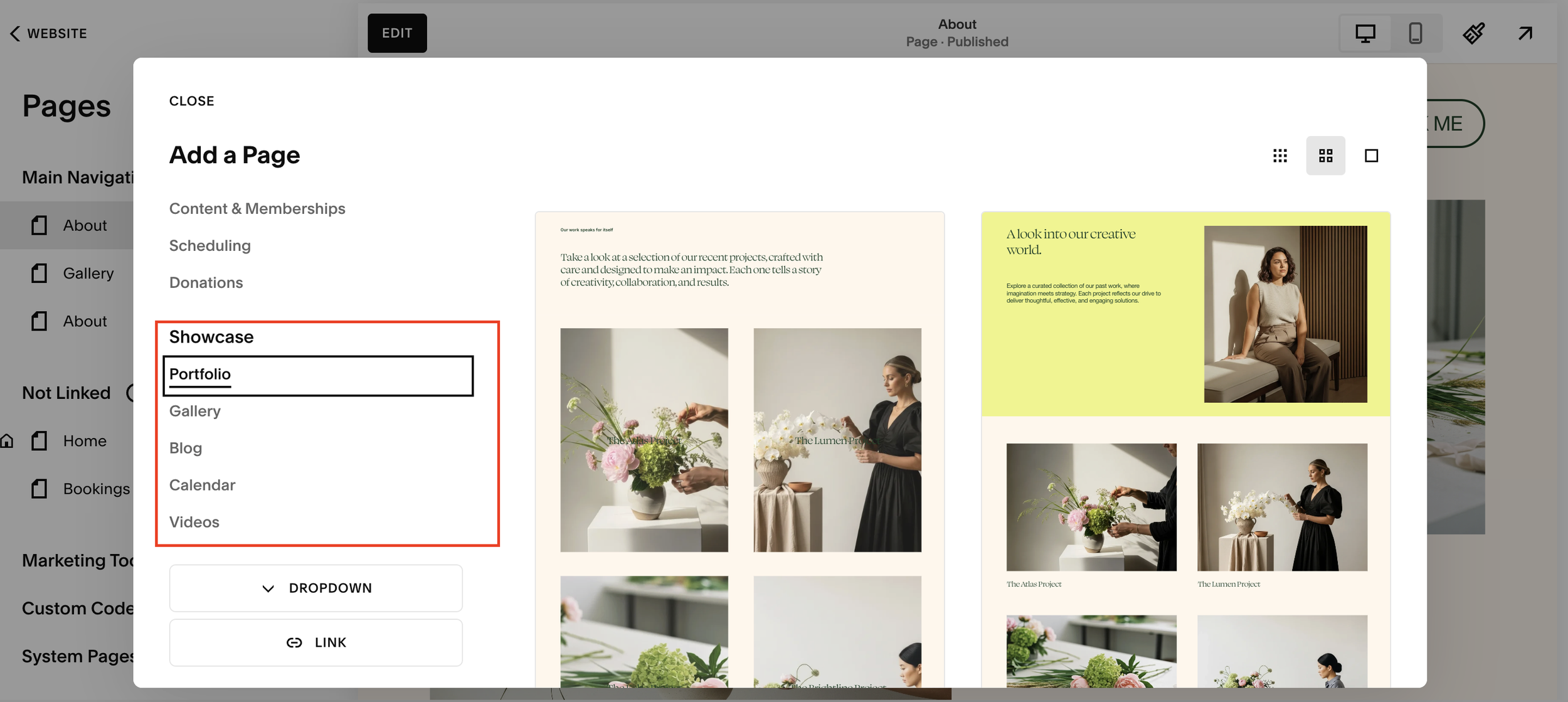
Where to Find Blog Pages in Squarespace
If you’re trying to add a blog, here’s where to look:
Go to Website > Pages
Click the “+” icon
Navigate to Showcase
Select a blog layout
Once added:
It will create a blog collection
You’ll be able to click into it and manage posts
You’ll see editing options (like the pencil icon)
Tip: If it behaves like a collection (editable content, multiple entries), then it is a collection.
How to Add a Shop (Ecommerce Store)
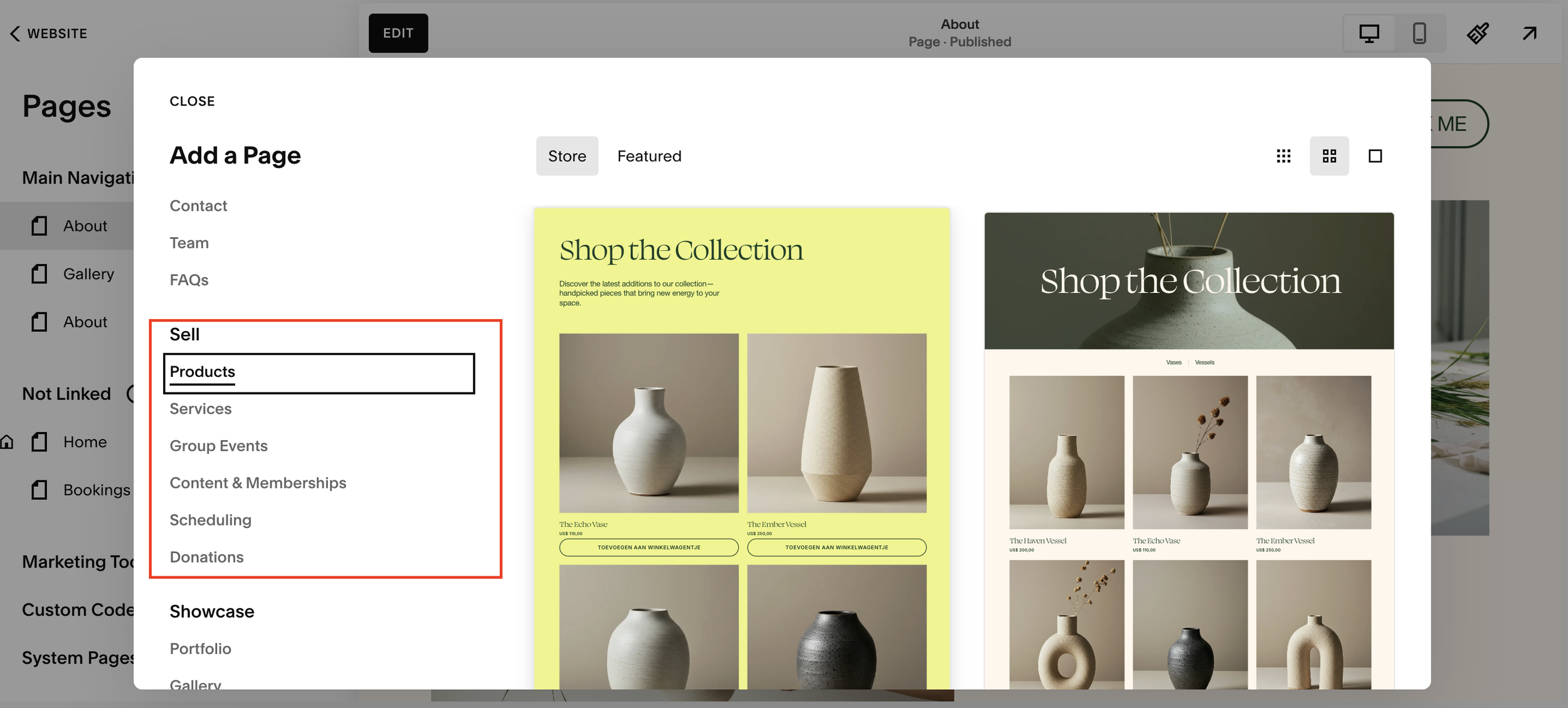
Looking to sell products? Here’s the updated flow:
Click the “+” icon in Pages
Go to the Sell category
Choose a store layout
Squarespace will automatically:
Set up an ecommerce store
Allow you to add and manage products
Display store functionality (like product listings and checkout)
You’ll recognise it as a shop because:
It includes product management features
You can click into it and view your inventory
Understanding the New Category System
The new menu groups page types by purpose, rather than by technical structure.
Here’s a simple way to think about it:
Introduce: Basic pages (about, home, etc)
Showcase: Content-driven pages (blogs, portfolios)
Sell: Ecommerce pages (products, store)
While this change may feel less obvious at first, it’s designed to guide users based on their goals.
Why This Change Can Be Confusing
Many users (especially those familiar with older versions of Squarespace) expect to see:
“Blank Page”
“Blog”
“Store”
Instead, everything is now grouped differently, which can make it seem like features have disappeared.
If you’ve found yourself thinking, “Where did the blog option go?”
You’re definitely not alone.
Final Thoughts
Squarespace’s updated page menu might take a little getting used to, but once you understand the logic behind the categories, it becomes much easier to navigate.
To recap:
Blogs live under Showcase
Shops live under Sell
Pages are grouped by purpose, not type
