Where Can You Find Squarespace Event Collections? (It's Moved!)
If you’ve been trying to add an events page in Squarespace recently, you’ve probably noticed something frustrating: the Events collection seems to keep moving.
Squarespace regularly updates its interface and menu structure, which means features that used to be easy to find can suddenly feel hidden. In older versions, you could simply click Add Page and choose from collections like Blog, Portfolio, Shop, or Events.
Now, the Events collection lives somewhere slightly different.
In this updated guide, you’ll learn exactly where to find the Squarespace Events collection, how to create an events page, and how to customize your event listings.
Where Is the Events Collection in Squarespace?
In the latest version of Squarespace, the Events collection is now located under Showcase.
Here’s how to find it…
Start, scale & systemise your web design agency.
I bootstrapped my agency from zero to seven figures. The Margin is the operating system I wish I'd had.
Join The Margin


Need an expert to build your Squarespace website?
Book a free kick-off call with our team to discuss your project requirements in detail.
Step 1: Open Your Squarespace Pages Menu
From your Squarespace dashboard:
Go to Pages
Click the + (Plus) icon
You can add the events page either to:
Main Navigation - visible in your website menu
Not Linked - hidden from the main navigation
If you place it in Not Linked, visitors won’t see it in your navigation menu unless you manually link to it elsewhere on your site.
Step 2: Go to Showcase > Calendar
After clicking the plus icon:
Scroll down to Showcase
Select Calendar
Squarespace now treats Events as a Calendar showcase layout rather than a standalone collection type.
You’ll also see several layout variations you can choose from depending on how you want your events displayed.
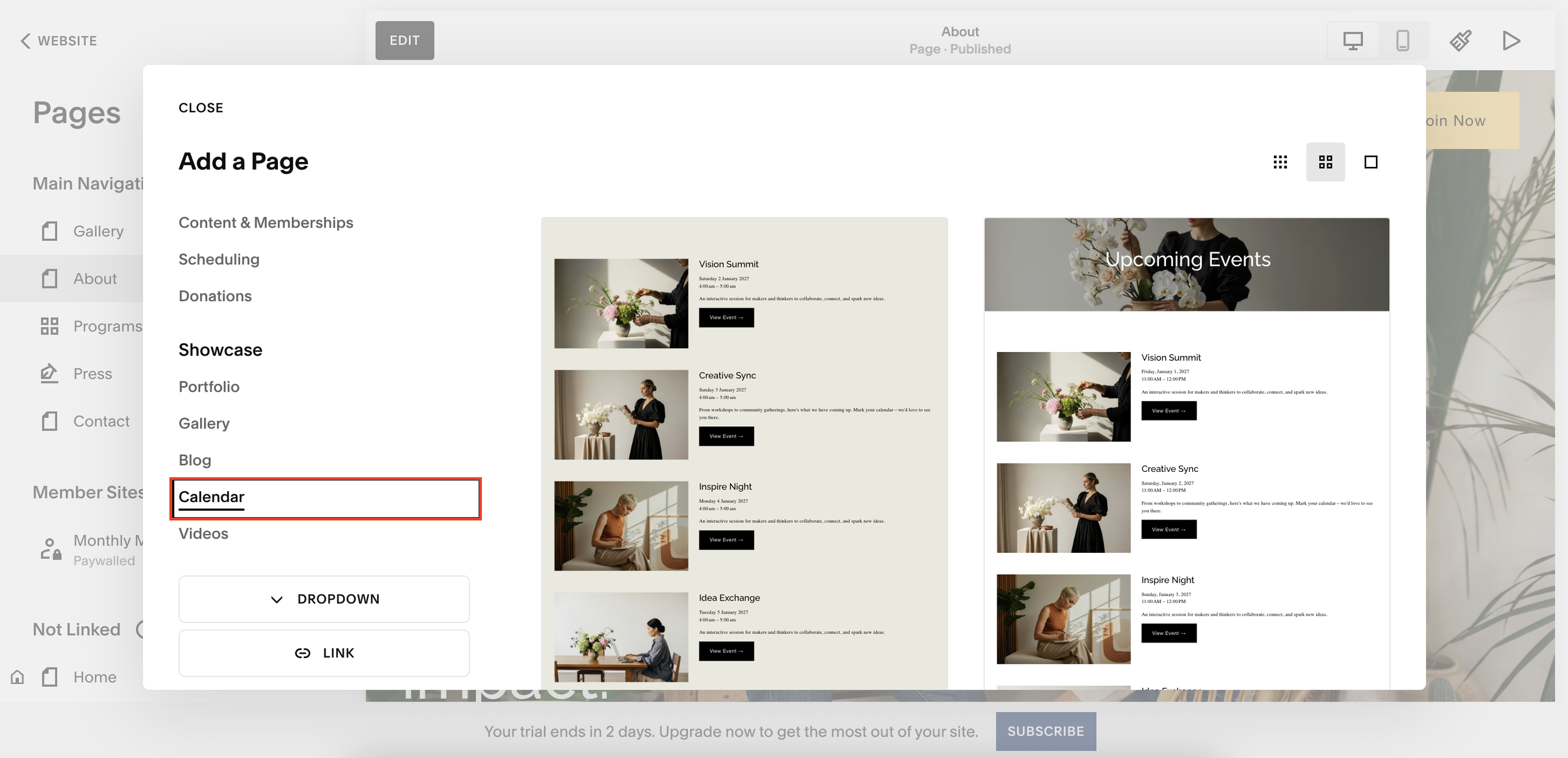
Step 3: Create Your Events Collection
Once selected, Squarespace creates your events page automatically.
You’ll know it’s the correct Events collection when you see the small events/calendar icon beside the page name.
Rename the page if needed, for example:
Events
Upcoming Events
Workshops
Live Sessions
Step 4: Add Events to Your Calendar
To add events:
Open your new Events page
Click the + button
Enter your event details
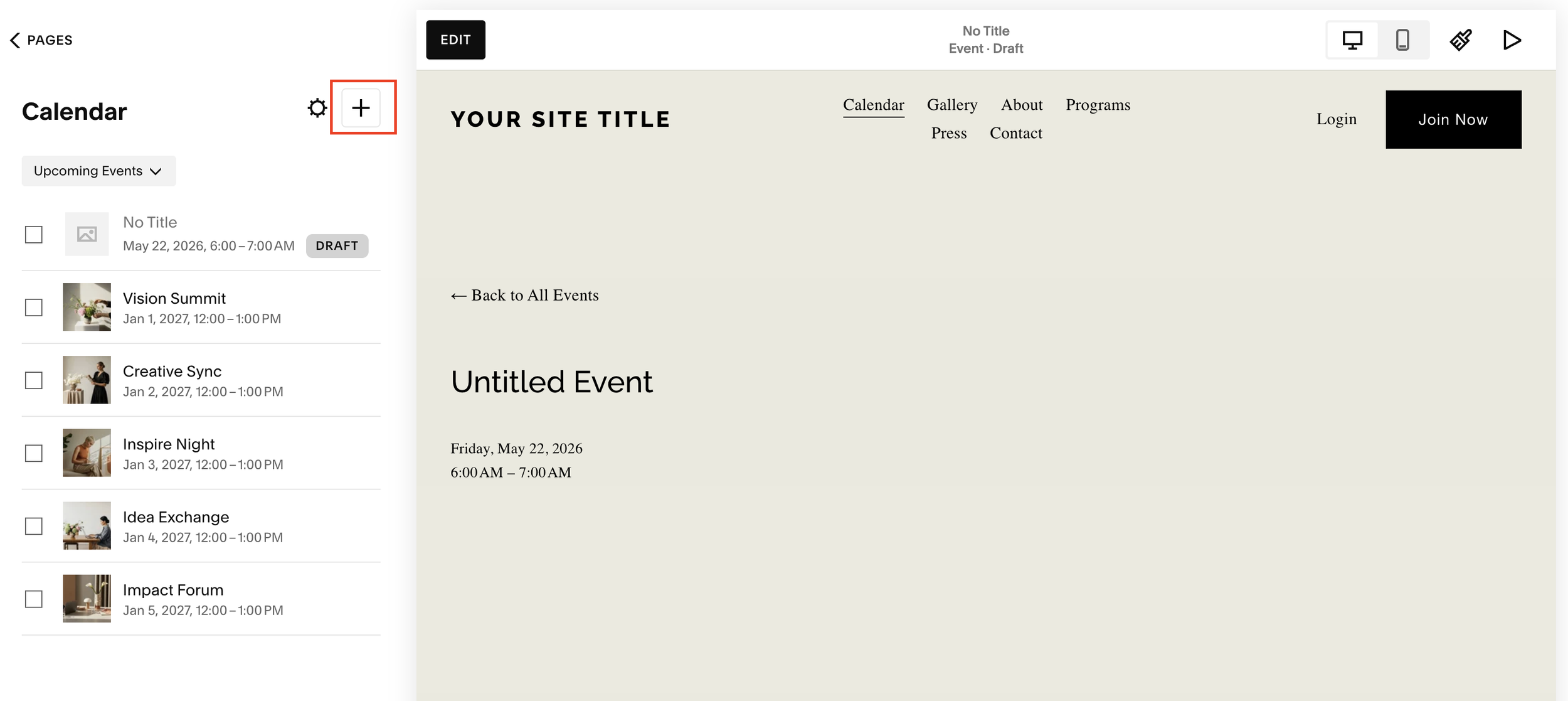
You can add:
Event title
Date and time
Location
Images
Descriptions
Registration links
Additional event information
Squarespace will automatically organize these into your calendar or event feed layout.
Step 5: Customize the Events Page Design
If you want to change the appearance of your events page:
Click the page title at the top
Select Edit
Open the section settings
From here, you can customize:
Event Item Height
Adjust how tall each event card appears.
Layout Width
Choose between:
Full width
Inset layout
Event Details Displayed
Control which information appears on each event card, such as:
Date
Time
Location
Featured image
Excerpt text
Aspect Ratio
Adjust how event images are cropped and displayed.
Why Squarespace Keeps Changing the Events Feature
Squarespace frequently updates its interface and naming conventions as part of ongoing platform improvements.
Features that were previously called “Collections” are now often grouped under newer categories like:
Showcase
Content Types
Dynamic Pages
This is why older tutorials can quickly become outdated.
Tips for Creating a Better Squarespace Events Page
To make your events page more engaging:
Use high-quality event images
Keep event titles short and clear
Include clear call-to-actions like “Register Now”
Add location and timing information prominently
Use consistent branding across event cards
A well-designed events page can help increase registrations and improve user experience.
Final Thoughts
If you’ve been wondering where the Events collection went in Squarespace, the answer is simple: it now lives under Showcase > Calendar.
While Squarespace may continue changing its interface over time, this is currently the fastest way to create and manage an events page on your website.
Once set up, you can fully customize your event listings, layouts, and styling directly inside the Squarespace editor, no coding required.
If you regularly host workshops, webinars, live events, or classes, having a dedicated Squarespace events page is one of the best ways to keep your audience informed and engaged.