


How to Access Classic Editor Sections on Squarespace
If you’ve built a website on Squarespace recently, you’ll know the platform now defaults to the Fluid Engine editor. It’s powerful, flexible, and perfect for modern layouts but let’s be honest, sometimes you just want the simplicity of the Classic Editor.
What many users don’t realise is that even on a brand-new Squarespace site, you can still access the old Classic Editor sections. They’re just a little hidden.
In this guide, I’ll show you exactly where to find them and how to switch between Fluid Engine and the Classic Editor whenever you need to.
Why Use the Classic Editor in Squarespace?
Fluid Engine is fantastic for precise layouts, drag-and-drop creativity, and advanced design control. I use it for about 99% of all new builds.
But sometimes the Classic Editor just works. It’s quicker for simpler layouts, more structured, and perfect for users who prefer a more traditional Squarespace experience.
Start, scale & systemise your web design agency.
I bootstrapped my agency from zero to seven figures. The Margin is the operating system I wish I'd had.
Join The Margin


Need an expert to build your Squarespace website?
Book a free kick-off call with our team to discuss your project requirements in detail.
How to Add a Classic Editor Section in Squarespace
Here’s the quick step-by-step process:
1. Enter Edit Mode
Open your page and click Edit in the top left corner.
2. Add a New Section
Click Add Section, and you’ll see the standard library of Fluid Engine sections.
3. Scroll Down to Find “Blank Classic Editor”
Squarespace hides this one a bit, but if you scroll right to the bottom, you’ll see an option for “Add a blank Classic Editor”. Clicking this gives you a clean Classic section ready to customize.
Access Even More Classic Sections (The Hidden Link)
If you want more than a blank template, like classic About, Contact, Form, or Donation layouts, there’s a hidden link you need to know about.
How to find it:
Click Add Section again.
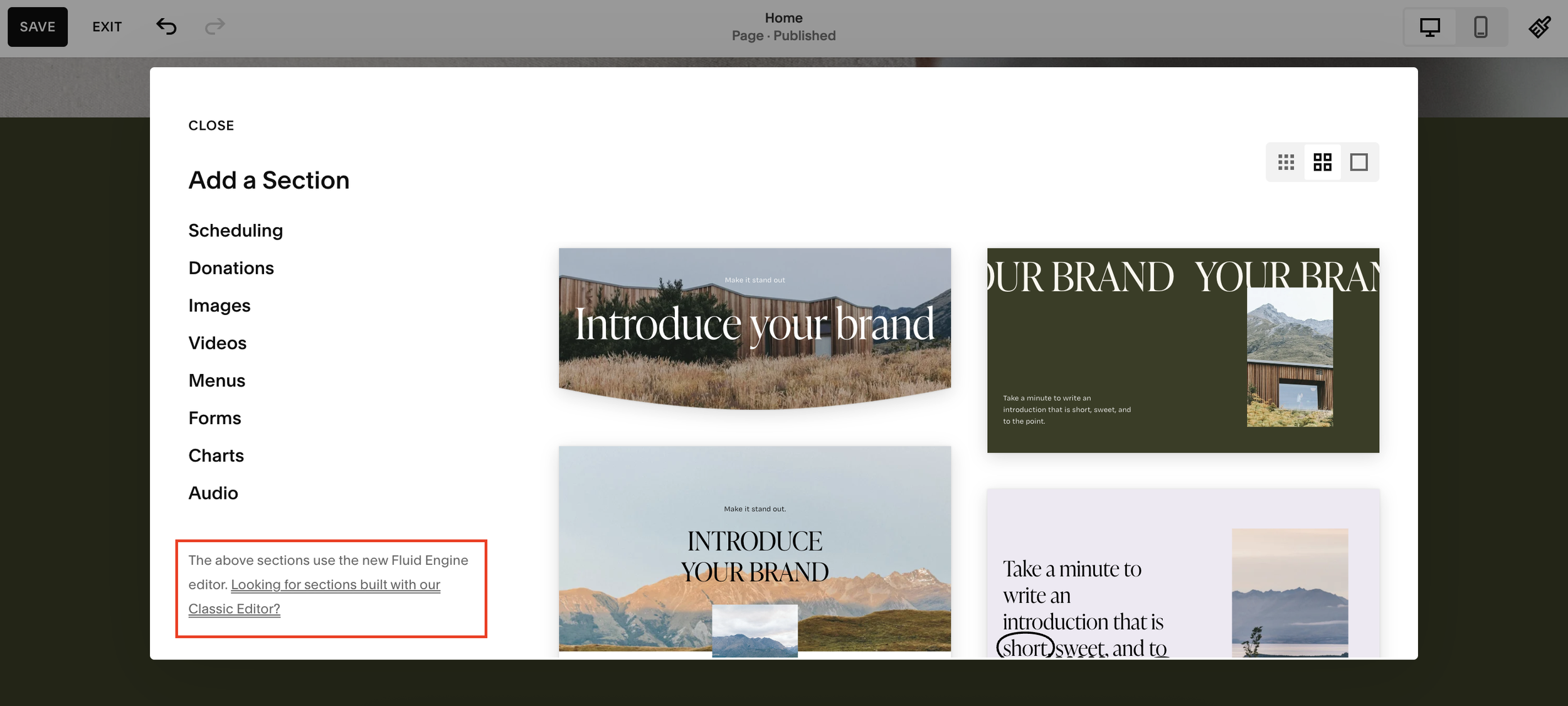
Scroll all the way to the bottom.
Look for the small link that says: “Looking for sections built with our classic editor?”
Clicking this opens the full library of old-school Classic Editor sections. It may take a moment to load, but once it does, you’ll have access to all the familiar templates from earlier versions of Squarespace.
You can add as many Classic sections as you like.
Switching Between Classic Editor and Fluid Engine
If you decide you want to upgrade a Classic section to Fluid Engine, Squarespace makes that easy:
To upgrade:
Click Upgrade on the section, it instantly becomes a Fluid Engine layout.
To revert back:
If upgrading was a mistake, just hit Back > Back again, and your section returns to Classic mode. Simple!
Final Thoughts
Squarespace continues to evolve, but the Classic Editor still has its place, especially for quick, clean layouts or users who prefer a more traditional editing experience.
By knowing where to find these hidden Classic sections, you get the best of both worlds, the power of Fluid Engine and the simplicity of Classic Editor.
