


Switch Your Squarespace Site's Theme in an Instant (Site Styles Shortcut)
If you’ve ever wanted to change the look of your Squarespace website in just a few clicks, you’re in luck.
Squarespace 7.1 makes it incredibly easy to switch your site theme and by “theme,” we’re talking about fonts, colors, and buttons, not the old template system from Squarespace 7.0.
In this quick guide, you’ll learn exactly how to update your Squarespace theme instantly using the built-in presets.
Squarespace Theme vs Template: What’s the Difference?
Before we dive in, it’s important to clarify:
This tutorial is for Squarespace 7.1
It is not for switching templates in Squarespace 7.0 (like Brine, Bedford, Pacific etc.)
In Squarespace 7.1, all sites use the same underlying template family. Instead of switching templates, you switch themes, meaning your site-wide fonts, colors, and button styles.
Start, scale & systemise your web design agency.
I bootstrapped my agency from zero to seven figures. The Margin is the operating system I wish I'd had.
Join The Margin


Need an expert to build your Squarespace website?
Book a free kick-off call with our team to discuss your project requirements in detail.
How to Change Your Theme in Squarespace 7.1
Switching your theme takes seconds. Here’s how to do it:
1. Open Site Styles
From any page on your site:
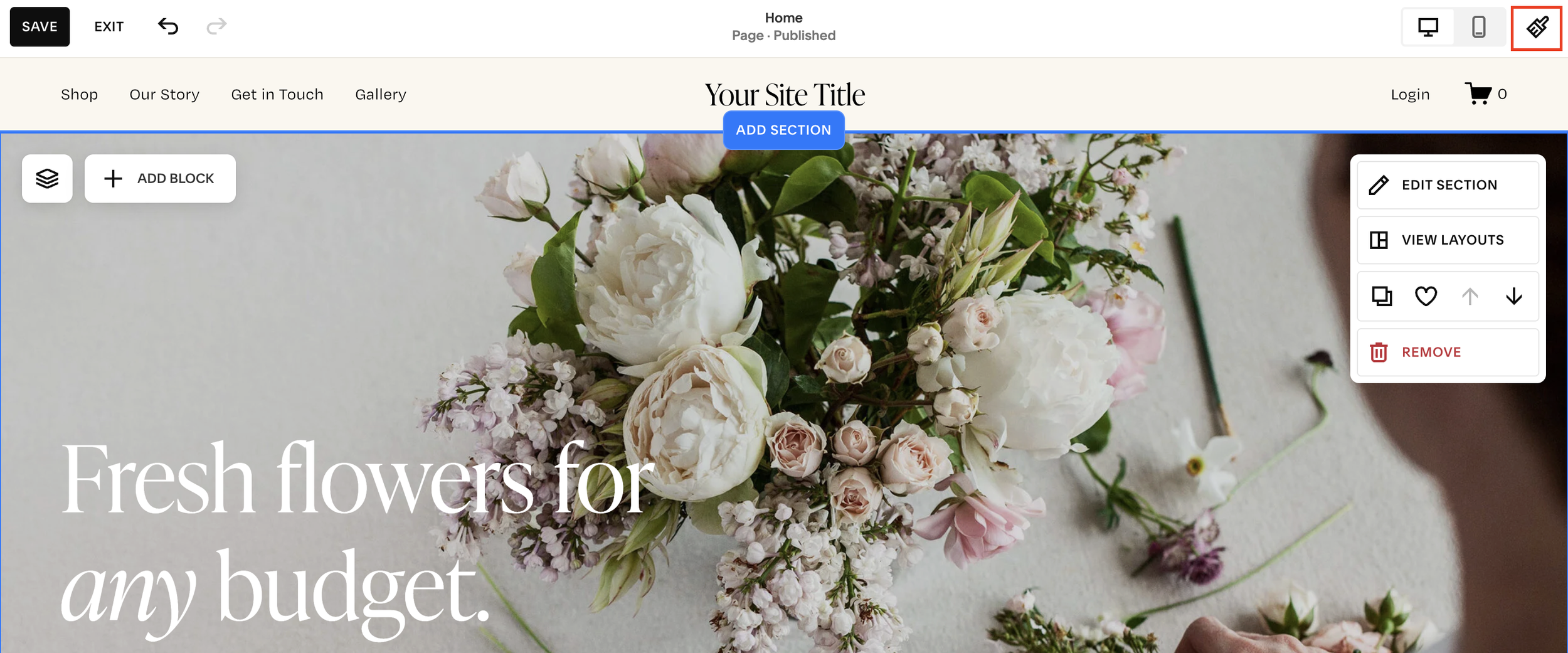
Click Styles on the left sidebar or
Click the paintbrush icon in the top-right corner of your editor
This opens your full site styling panel.
2. Select “Themes”
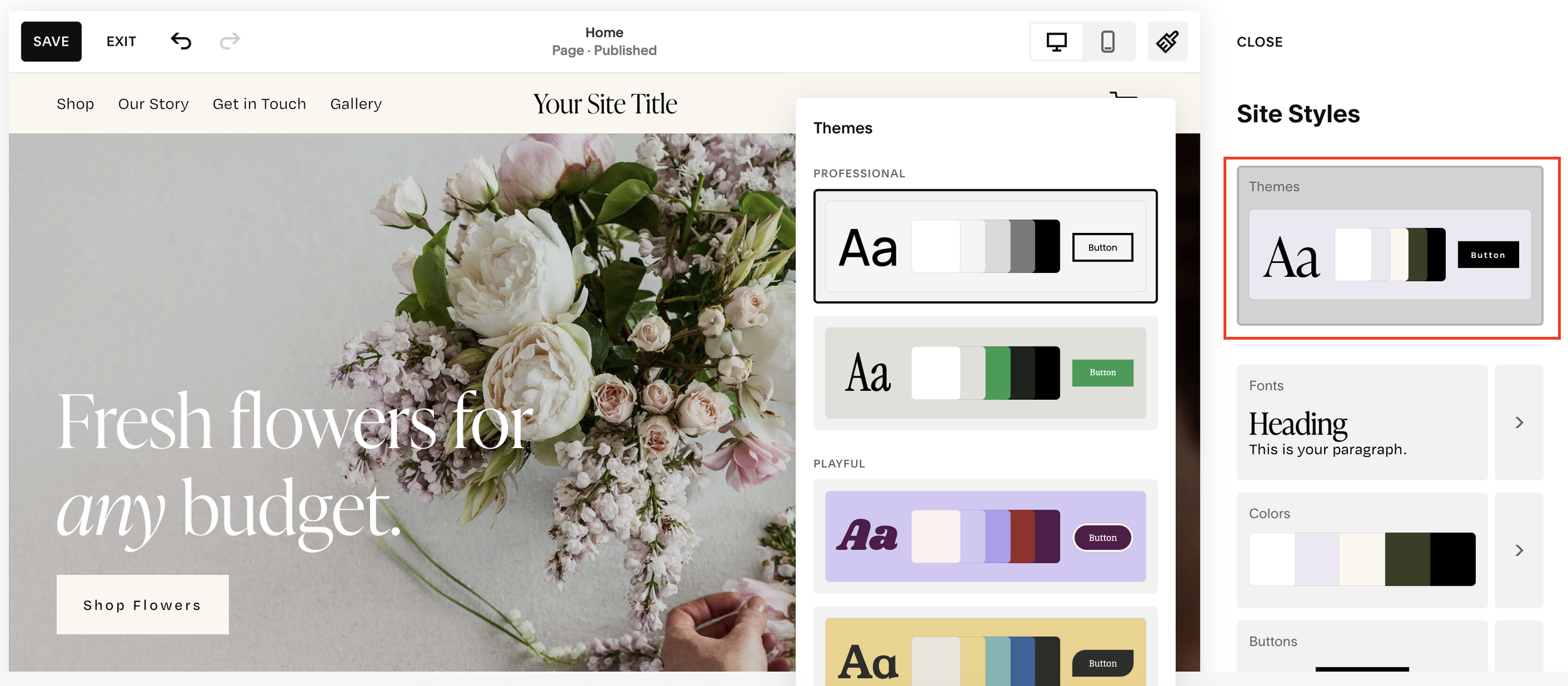
At the top of the styles panel, you’ll see Themes, this is the first section you’re taken to automatically.
The Themes section includes presets for:
Fonts
Color palettes
Button styles
These presets are designed to work together, giving you a cohesive visual style with one click.
3. Browse the Theme Presets
Squarespace shows you a preview of how each theme affects your:
Heading and body fonts
Brand and accent colors
Button shapes and hover states
Each preset has its own quirky name, some more fitting than others! But the important thing is how they look when applied to your site.
Click through each one to see an instant preview of your new style.
4. Choose the Theme That Fits Your Aesthetic
Whether you want something bold, playful, minimal, or professional, Squarespace has a preset that sets the tone.
Once you find a theme you like:
Click Save
Click Exit
Your site will immediately update across all pages.
Fonts, colors, and button styles, all done.
What Happens After You Switch Themes?
Once applied, the new theme updates:
Headings and paragraph fonts
Background and accent colors
Button shapes, sizes, and hover effects
Everything changes site-wide, keeping your design consistent without any manual editing.
Final Thoughts
Switching your Squarespace theme in 7.1 is one of the fastest ways to give your site a fresh, cohesive look. No rebuilding. No redesigning. Just a clean style update in seconds.
