


How to Set Your Homepage on Squarespace
If you’ve ever created a brand-new page in Squarespace, complete with custom designs, layouts, and content, you might reach a point where you want to make that page your official homepage. But many users quickly realise they have no idea how to change the homepage Squarespace automatically assigns when they first set up their site.
The good news? Although it’s a little hidden, switching your homepage in Squarespace takes less than 10 seconds once you know where to look.
In this tutorial, I’ll show you exactly how to replace your existing homepage with your newly designed one.
Why You May Need to Change Your Homepage
Squarespace gives every new website a default homepage based on the template you chose. But after you’ve built a new page, perhaps something more on-brand or better designed, you’ll want it to replace the old template page.
Typical reasons include:
You’ve built a custom homepage from scratch
You’re switching designs and need a fresh start
You imported content and want a different page layout
Your current home page is tied to an outdated template
No matter the reason, the process to switch is the same.
Start, scale & systemise your web design agency.
I bootstrapped my agency from zero to seven figures. The Margin is the operating system I wish I'd had.
Join The Margin


Need an expert to build your Squarespace website?
Book a free kick-off call with our team to discuss your project requirements in detail.
Step 1: Identify Your Old and New Homepages
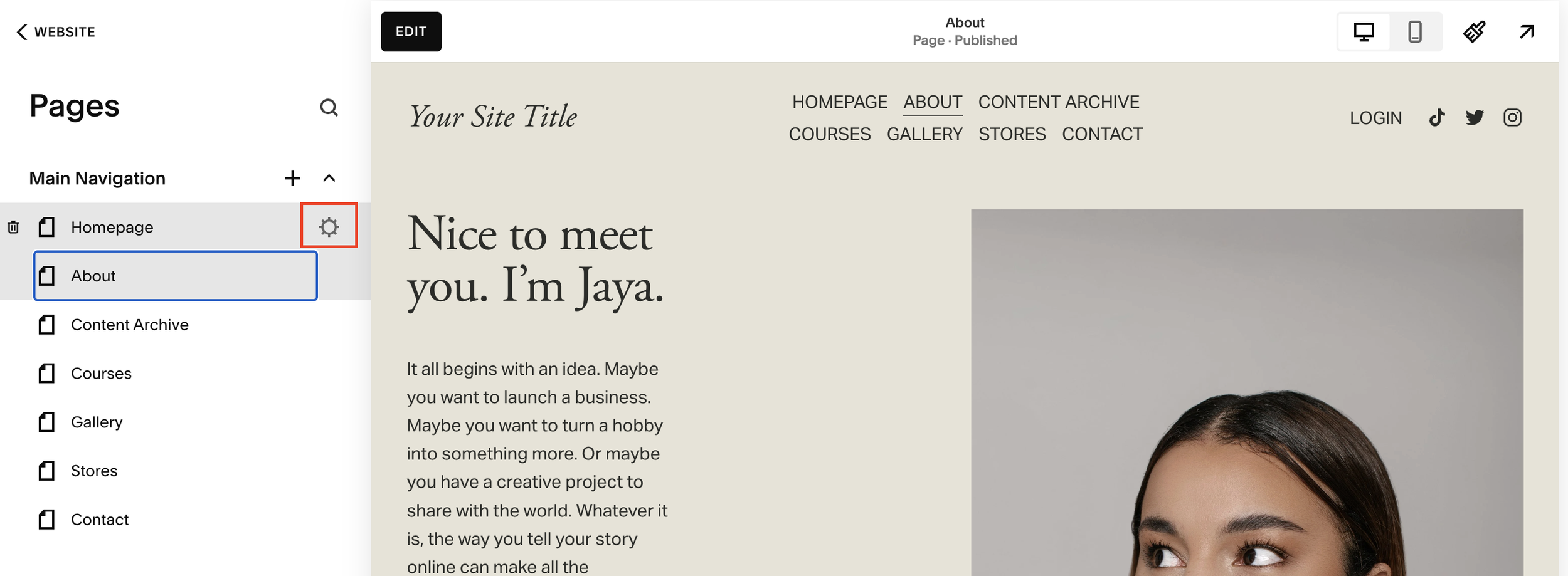
Go to Pages inside your Squarespace dashboard.
You’ll see:
Your current homepage (marked with a house icon)
Your new custom page (e.g. “Home New” or “Homepage New”)
Squarespace doesn’t allow two pages with the same URL slug. This is why:
The current homepage uses the slug /home
Your new page must temporarily use something like /home-new
Before you can switch them, you’ll need to free up the /home slug.
Step 2: Rename the Old Homepage
Click the cog/gear icon next to your current homepage.
Change the page title and URL slug to something like:
Home Old
/home-old
This frees up the /home slug for the page you actually want.
Squarespace will not change the homepage automatically, even after renaming it, that part comes next.
Step 3: Set Your New Page as the Homepage
Now select your new page:
Click the cog icon next to your new custom homepage.
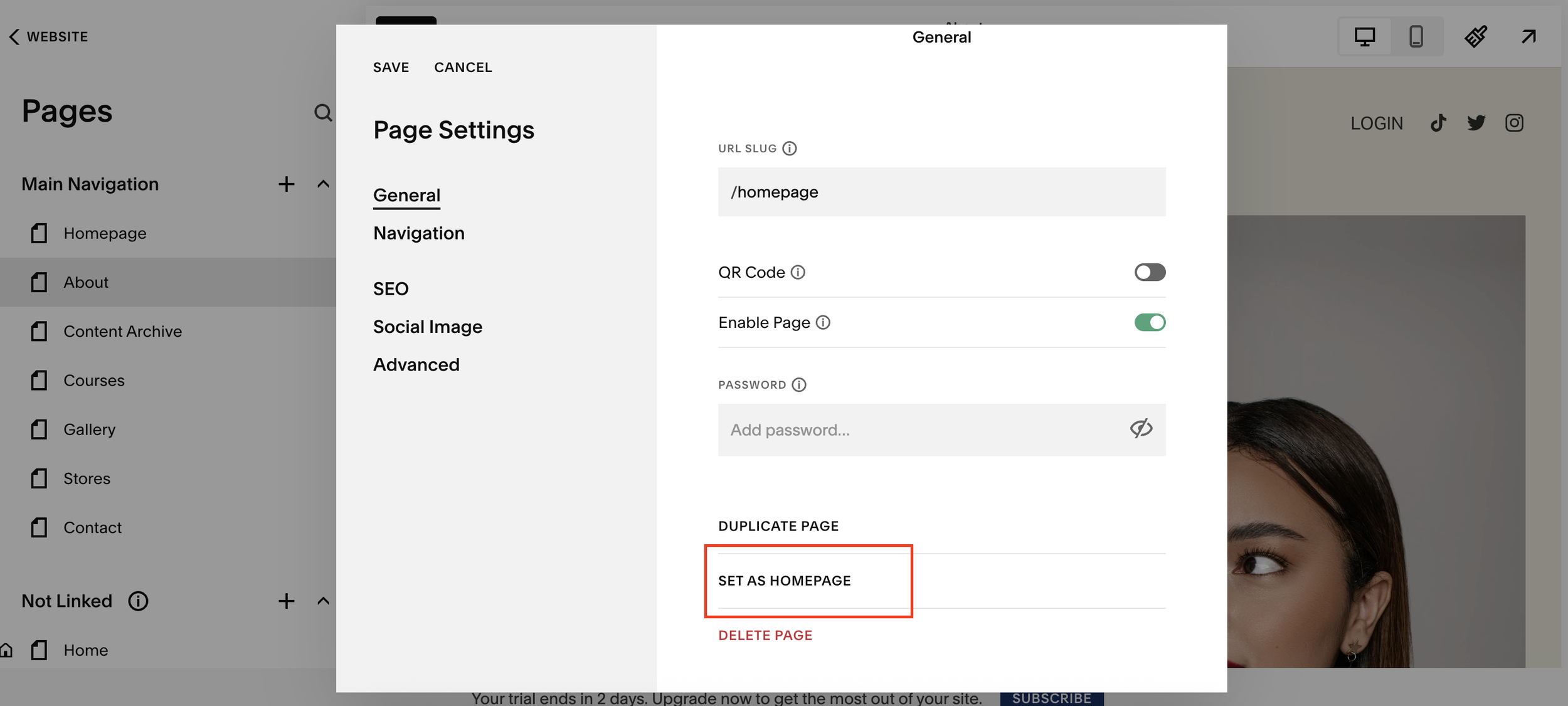
Change the page title to Home.
Change the slug to /home.
Click Set as Homepage.
Confirm the popup when Squarespace asks you to switch.
Your new page is now the official homepage of your site.
Step 4: Confirm the Homepage Swap
There are two easy ways to double-check:
Click your site title or logo, it should now load your new homepage.
Look for the house icon next to the page in the Pages panel.
If the house icon is next to your new page, you’re set.
Step 5: Clean Up Your Old Homepage
You have two options:
Disable the old page
Delete it
Or, like many users, keep it as a backup (recommended)
To disable it, click the settings cog, toggle off “Enable Page.”
And That’s It - Your New Squarespace Homepage Is Live
Switching your homepage in Squarespace is quick once you know where the controls are. Whether you're redesigning your website or updating your brand, this simple process lets you roll out a new homepage without affecting the rest of your site.
