


Create a Content Archive on Squarespace
If you’ve been publishing blogs, portfolio items, or products on your Squarespace website, you might eventually want a clean and organised way for visitors to browse your older content. The good news? Squarespace includes a built-in Archive Block that makes it incredibly simple to create an automatic content archive.
In this guide, I’ll walk you through exactly how to build a content archive page in Squarespace, customise it, and use it to organise your blog posts, portfolio entries, or store items.
What Is a Squarespace Archive Page?
A content archive page displays your posts or items broken down by month, year, category, author, or tag. Rather than manually linking to older content, the Archive Block automatically pulls everything in for you, saving time and improving your site navigation.
This is especially useful if you:
Publish blogs regularly
Have a large portfolio
Need a chronological list of posts
Want to improve UX and SEO with better content discoverability
Start, scale & systemise your web design agency.
I bootstrapped my agency from zero to seven figures. The Margin is the operating system I wish I'd had.
Join The Margin


Need an expert to build your Squarespace website?
Book a free kick-off call with our team to discuss your project requirements in detail.
Step 1: Create a New Page for Your Content Archive
Go to Pages in your Squarespace dashboard.
Add a new page (e.g. “Content Archive”).
Click Edit to open the page editor.
Add a Blank Section.
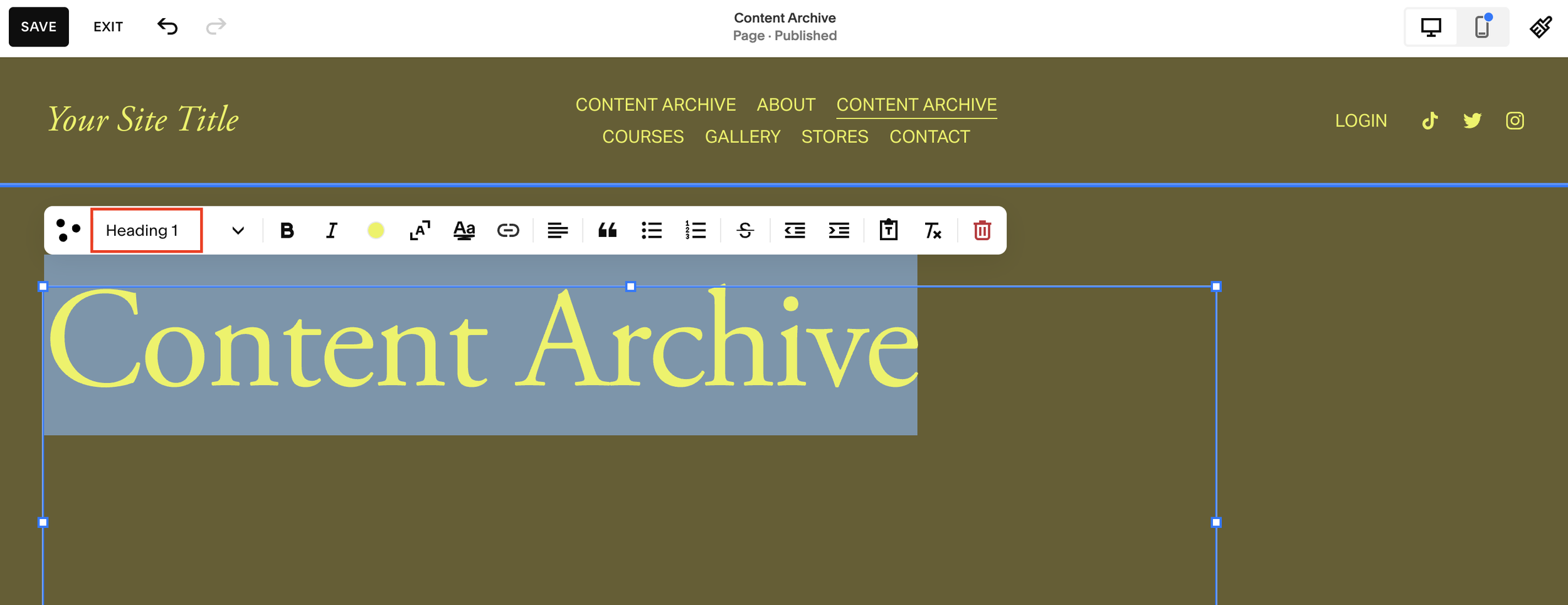
Insert a Text Block and type your page title, for example: “Content Archive”
Format it as an H1 heading for SEO.
Your page is now ready for the Archive Block.
Step 2: Add the Archive Block
Click Add Block.
Search for Archive.
Insert the Archive Block into your section.
Drag the block out to the edge of the grid so it aligns neatly with the layout.
At first, you’ll see placeholder text, don’t worry, your content will appear once you connect it.

Step 3: Choose What Content to Display
Double-click the Archive Block to open its settings.
Under Content Source, you can choose to pull in:
Blog posts
Portfolio items
Store products
Select the collection you want to archive.
For example:
If you run a blog, select Blog
If you manage client work, select Portfolio
If you run an online shop, choose Products
If you have a large number of posts (e.g. 700+), it may take a few moments to populate.
Step 4: Style Your Archive Layout
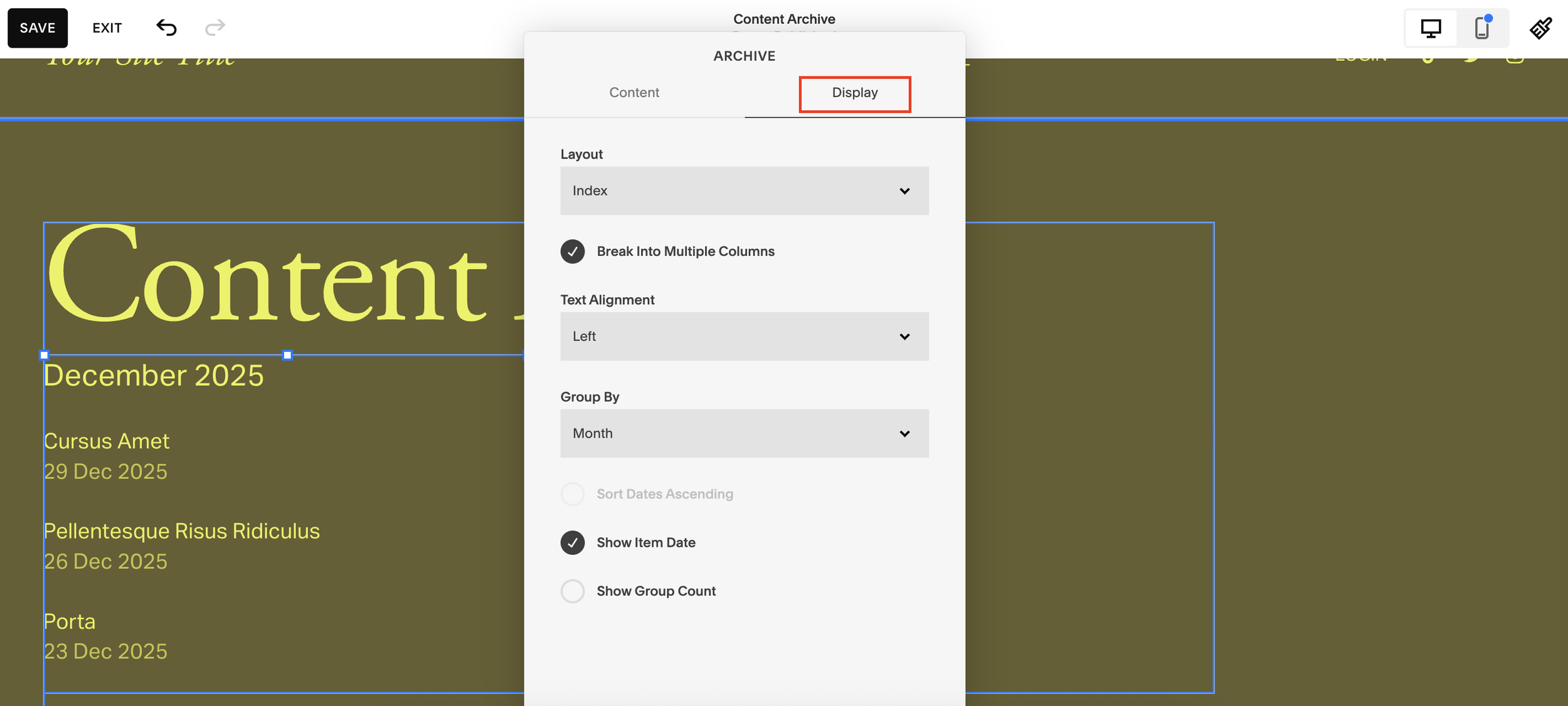
Within the Archive Block settings, click Display. Here you can choose your preferred layout:
Index - Shows a chronological index list.
List - Displays posts in a simple stacked format.
Dropdown (Most Popular Option) - Creates a collapsible dropdown menu organised by the group you choose.
For example, if you're building a portfolio archive, you might select:
Display: Dropdown
Title: “View Our Portfolio Items”
Group By: Category
Show Group Count: Enabled
This will create a dropdown list of categories with the number of posts in each.
Step 5: Group Your Archived Content
Squarespace allows you to group your content by:
Month
Year
Author
Category
Tag
For a blog archive, grouping by Month or Year is most common. For a portfolio, categories work best.
Example blog setup:
Display: Dropdown
Title: “View All Blog Posts”
Group By: Month
Sort Order: Start date ascending
Show Group Count: On
Step 6: Test Your Archive Page
Exit the editor and view your page live.
You should now see:
A dropdown (or list) of grouped content
Each group showing a count of posts
Clicking an item takes you directly to a pre-filtered list of those blog posts or portfolio entries
Squarespace automatically sends users to a filtered view, so the archive itself remains clean, while visitors see the content on your main blog or portfolio page.
Result: A Fully Automated Content Archive
Whether you started blogging in 2021 or yesterday, the Archive Block creates a chronological index of your posts or projects with zero manual maintenance. It’s ideal for:
Content-heavy websites
Agencies with large portfolios
Long-term bloggers
SEO-friendly site structures
Visitors can easily browse your entire content history, improving engagement and usability.
Final Thoughts
Creating a content archive in Squarespace is fast, flexible, and completely automated once set up. If you regularly publish blogs or portfolio items, this feature is a must-have for organisation and user experience.
