


How to Rotate Shape Blocks in Squarespace (No CSS Required)
Want to rotate shape blocks in Squarespace without touching a single line of code? Thanks to Squarespace's built-in design tools, you now have full control over the angle, scale, and position of any shape block, no custom CSS needed.
In this guide, we'll walk you through exactly how to rotate shape blocks in Squarespace step by step.
Why You No Longer Need CSS to Rotate Shapes in Squarespace
Previously, rotating a shape block in Squarespace required adding custom CSS, a workaround that was fiddly and inaccessible for many users. Now, Squarespace's Design Tools give you granular control over your shape blocks directly within the editor, including the ability to rotate them to any angle you like.
Start, scale & systemise your web design agency.
I bootstrapped my agency from zero to seven figures. The Margin is the operating system I wish I'd had.
Join The Margin


Need an expert to build your Squarespace website?
Book a free kick-off call with our team to discuss your project requirements in detail.
How to Rotate a Shape Block in Squarespace: Step-by-Step
Step 1: Enter Edit Mode and Add a Shape Block
Open your Squarespace page editor and click Edit. Then add a Shape Block from the block menu. For this example, we'll use a triangle, but the method works with any shape.
Step 2: Open the Shape Block Settings
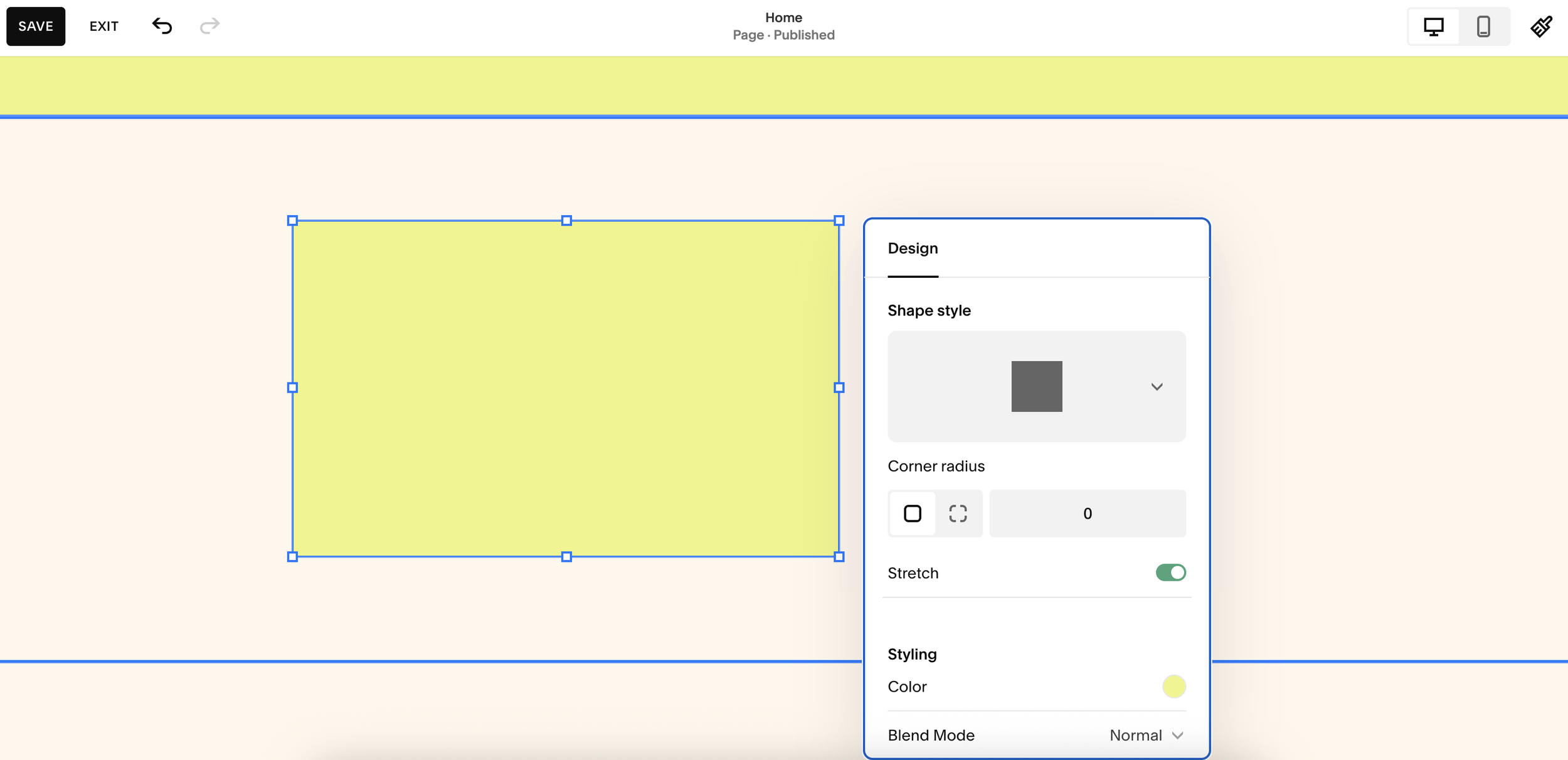
Double-click on the shape block to open its settings panel. From here, you can change the shape type. Select Triangle (or whichever shape you'd like to rotate).
Step 3: Find the Transform Controls
Scroll down within the block settings and you'll see a section called Transforms. This is where the magic happens. You'll find options to adjust:
Opacity - change the transparency of the shape
Scale - make the shape larger or smaller
Rotation - set the angle of the shape
Step 4: Set Your Rotation Angle
Use the rotation input or the slider to choose your desired angle. Here's a quick reference for common rotation values:
0° / 360° - original position (no change)
90° - rotates the shape onto its side (pointing right)
180° - flips the shape upside down
270° - rotates the shape the other way (pointing left)
You can also use the slider for fine, incremental adjustments to land on the perfect angle, for example, 150° creates a dynamic diagonal effect that can bleed towards the edge of a section.
Things to Keep in Mind
Rotation affects how the shape sits within its block container. When a shape is in its default state, it sits neatly within its bounding box. Once rotated, it may extend beyond the original boundaries, overlapping with nearby content or the edge of the page. This can actually create interesting visual effects, use it intentionally!
Some shapes are better suited to rotation than others. A circle, for example, looks the same regardless of rotation angle (unless it's been stretched into an ellipse). Shapes with distinct corners, like triangles, squares, hexagons, and other polygons will show a much more noticeable and interesting result when rotated.
Works With Any Shape Block
This rotation method works across all of Squarespace's available shape blocks, including:
Triangles
Squares and rectangles
Hexagons and other polygons
Diamonds
Ellipses (when scaled unevenly)
Experiment with different shapes and rotation values to create eye-catching design elements on your Squarespace website.
Summary
Rotating shape blocks in Squarespace is now quick and easy using the built-in Transform controls. No CSS, no third-party tools just open the shape block settings, scroll to Transforms, and dial in your rotation angle. Whether you want a subtle tilt or a full 180° flip, you have complete creative control.
