


How to Add Bullet Points in Squarespace List Sections (Step-by-Step Guide)
If you’ve noticed that adding bullet points in Squarespace list sections used to be possible, but then suddenly stopped working, you’re not imagining it. At some point, this feature changed, leaving many users unsure how to format their list content properly.
The good news is that bullet points are back and easier to use than ever. In this guide, you’ll learn exactly how to add bullet points (and numbered lists) inside Squarespace list sections.
Why Bullet Points Matter in Squarespace Lists
Using bullet points helps make your content:
Easier to read
More visually structured
Better for user experience
More engaging on mobile devices
Whether you're building a portfolio, blog, or business site, clean formatting can make a big difference in how professional your pages look.
Start, scale & systemise your web design agency.
I bootstrapped my agency from zero to seven figures. The Margin is the operating system I wish I'd had.
Join The Margin


Need an expert to build your Squarespace website?
Book a free kick-off call with our team to discuss your project requirements in detail.
How to Add Bullet Points in Squarespace List Sections
This process works inside the list sections in Squarespace. Follow these simple steps:
Step 1: Open Your Squarespace Page
From your Squarespace dashboard:
Go to Pages
Select the page you want to edit (for example, an “Editorial Styling” page)
Click Edit
Step 2: Add a List Section
Next, you’ll want to insert a list section:
Click Add Section
Choose List Section from the section options
This creates a structured content block designed for repeated items.
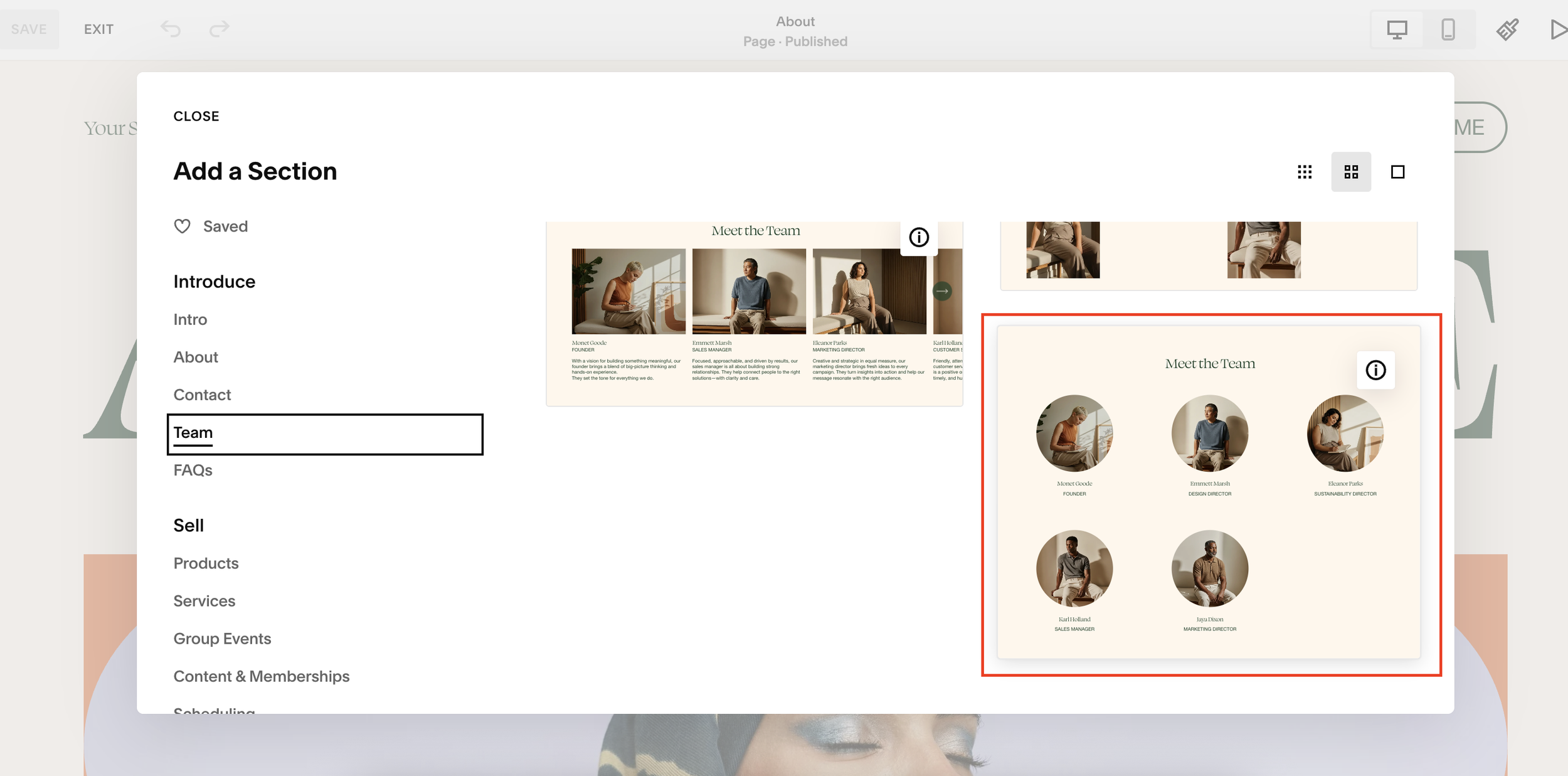
Step 3: Edit the List Content
Now it’s time to add your content:
Click Edit Content
Open the Content panel
Select the item you want to format
Step 4: Turn Text into Bullet Points
Inside the text editor:
Highlight your text
Click the Bullet List icon
You’ll instantly see your content convert into bullet points.
You can also:
Add multiple bullet points by pressing Enter
Create numbered lists using the Numbered List option

What Changed in Squarespace?
Previously, users could create bullet points by typing a dash (-), and Squarespace would automatically convert it into a list.
That behaviour has now changed, and instead:
Bullet lists must be created using the formatting toolbar
Numbered lists are now explicitly supported
Formatting is more consistent across devices
This update makes list formatting more visible and beginner-friendly.
Final Touches
Once you’re happy with your list:
Click Save
Then click Exit
Preview your page to make sure everything looks correct. If you notice any stray or extra bullet points, you can easily go back and adjust them in the editor.
Tips for Better Squarespace Lists
To get the most out of your list sections:
Keep bullet points short and clear
Use consistent formatting across sections
Avoid mixing long paragraphs with bullet lists
Use numbered lists for step-by-step instructions
Final Thoughts
Adding bullet points in Squarespace list sections is now a simple, built-in feature that improves the structure and readability of your content. Once you know where the formatting tools are, it only takes a few clicks.
If you found this guide helpful, consider exploring more Squarespace tutorials to improve your site design and content layout.
