


How to Change Your Page Width on Squarespace
If you're wondering how to change page width in Squarespace, you're not alone. It's one of the most common design adjustments website owners make when customizing their site's layout.
When people talk about changing page width in Squarespace, they usually mean one of two things:
Adjusting how wide the content appears on the screen
Setting the maximum width before content stops expanding on larger displays
Fortunately, Squarespace makes both settings easy to customize. In this guide, we'll walk through exactly where to find these options and how to use them effectively.
How to Access Page Width Settings in Squarespace
To change your page width settings:
Log in to your Squarespace dashboard.
Navigate to Site Styles.
Scroll down to Miscellaneous.
Select Spacing.
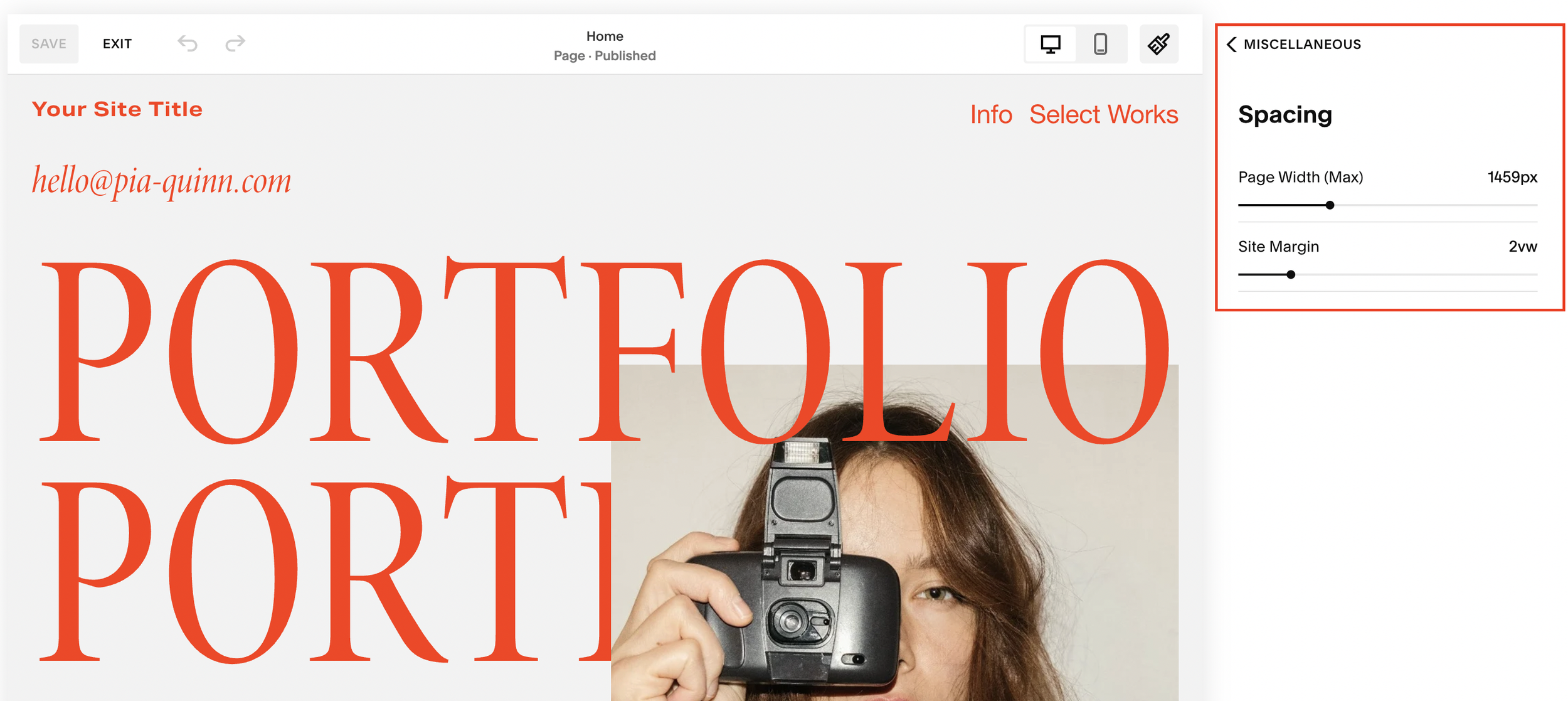
Inside the Spacing settings, you'll find two important controls:
Site Margin
Max Page Width
Each affects your site's layout differently.
Start, scale & systemise your web design agency.
I bootstrapped my agency from zero to seven figures. The Margin is the operating system I wish I'd had.
Join The Margin


Need an expert to build your Squarespace website?
Book a free kick-off call with our team to discuss your project requirements in detail.
Adjusting Site Margin in Squarespace
The Site Margin setting controls the amount of space between your content and the edges of the browser window.
When you increase the site margin:
More whitespace appears around your content.
Content feels more centered and spacious.
The change is visible immediately across screen sizes.
Larger margins can create a cleaner, more premium-looking design, while smaller margins allow more content to fit on the screen.
Changing the Max Page Width
The Max Page Width setting determines how wide your content can become before it stops expanding.
If you increase the max page width significantly:
Content continues stretching across larger screens.
Sections can span nearly the full width of the browser window.
The layout may appear overly stretched on ultra-wide monitors.
To see the effect clearly, try zooming out in your browser. You'll notice the content keeps expanding until it reaches the maximum width you've set.
Recommended Max Page Width for Squarespace
While Squarespace allows very large page widths, it's generally best to avoid making content span the entire screen.
A max page width of around 1,400 pixels is often a good balance because it:
Improves readability
Creates a more professional layout
Prevents text lines from becoming too long
Maintains consistent spacing on larger displays
With a width around 1,400px, your content will stop expanding after reaching that limit, even when viewed on large monitors.
Why Page Width Matters for User Experience
Choosing the right page width can significantly impact your website's usability.
Wider Layouts
Showcase large images effectively
Create a modern, spacious feel
Work well for portfolio websites
Narrower Layouts
Improve text readability
Make blog posts easier to consume
Create a cleaner visual hierarchy
For most business websites, blogs, and service-based sites, a moderate max page width offers the best user experience.
Final Thoughts
Changing page width in Squarespace is a quick adjustment that can dramatically improve your site's appearance and readability.
Simply go to:
Site Styles > Miscellaneous > Spacing
Then adjust:
Site Margin to control spacing around content
Max Page Width to determine how wide content can grow on larger screens
For most websites, a max page width of approximately 1,400px provides a clean, balanced layout that looks great across all screen sizes.
By fine-tuning these settings, you can create a more polished and professional Squarespace website.
