


How to Link Buttons to Sections in Squarespace (Anchor Link Guide)
Anchor links are one of the most useful, but often overlooked, features in Squarespace. They allow you to link a button or menu item directly to a specific section on a page, either on the same page or on a different page of your website.
In this guide, you’ll learn two simple ways to use anchor links in Squarespace:
Linking a button to a section on the same page
Linking a button to a section on a different page
By the end, you’ll be able to create smooth, user-friendly navigation that improves both user experience and SEO.
What Is an Anchor Link in Squarespace?
An anchor link (also called a jump link) is a URL that points to a specific section within a page. Instead of loading a new page, it scrolls the visitor directly to the chosen section.
Anchor links are commonly used for:
“Learn More” or “About Us” buttons
One-page websites
Navigation menus
Long pages with multiple sections
Start, scale & systemise your web design agency.
I bootstrapped my agency from zero to seven figures. The Margin is the operating system I wish I'd had.
Join The Margin


Need an expert to build your Squarespace website?
Book a free kick-off call with our team to discuss your project requirements in detail.
How to Link a Button to a Section on the Same Page
Let’s say you want a button on your homepage to scroll down to a section called Programs.
Step 1: Add an Anchor Name to the Section
Open the Squarespace editor
Scroll to the section you want to link to
Click Edit Section
Find the Anchor Link field
Enter a name (for example: program)
Save your changes
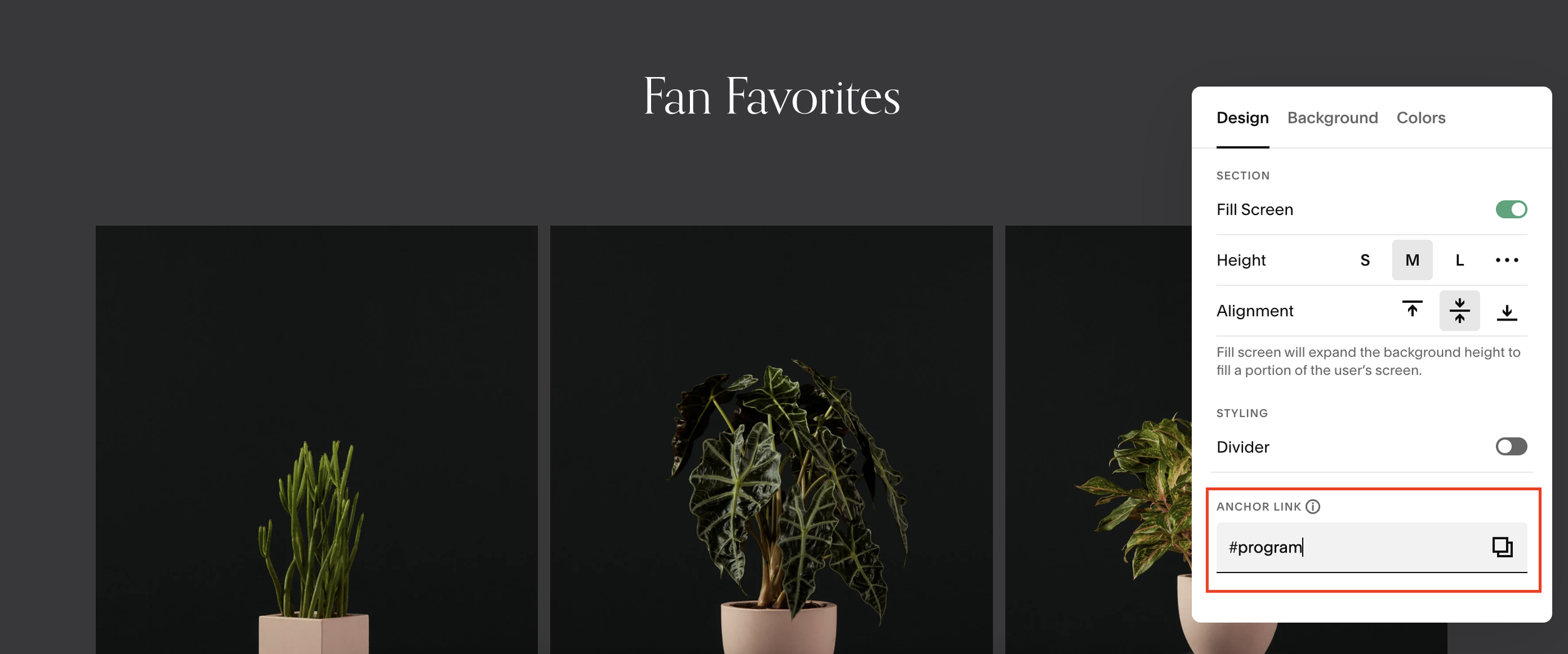
Step 2: Link the Button to the Anchor
Edit the button you want to link
2. In the URL field, type: #program
Save the button
Now, when someone clicks the button, Squarespace will scroll them directly to the Programs section on the same page.
How to Link a Button to a Section on a Different Page
You can also use anchor links to send visitors to a specific section on another page.
Example:
You’re on the About page and want a button that sends users to the Programs section on the Home page.
Step 1: Set the Anchor Link on the Destination Page
Just like before:
Open the page you’re linking to (e.g. Home)
Edit the target section
Add an anchor name (e.g. program)
Save
Step 2: Create the Button on the Other Page
Add or edit a button
In the URL field, enter: /home#program
Save the button
Now, when the button is clicked, Squarespace will:
Load the Home page
Automatically scroll to the Programs section
Common Anchor Link Issues (and How to Fix Them)
Nothing happens when you click the button - Make sure the anchor name matches exactly (no extra letters or spaces)
Plural vs singular names - If programs doesn’t work, try program
Anchor not saving - Double-check you saved the section, not just the page
Best Practices for Squarespace Anchor Links
Use short, descriptive anchor names
Avoid duplicate anchor names on the same page
Don’t include spaces or symbols
Test links in preview mode before publishing
