


Add a Lightbox Gallery in Squarespace
One of the most commonly requested features in Squarespace forums and Facebook groups is the ability to turn a gallery into a lightbox. The good news? Squarespace already includes this feature, you just need to know where to find it.
In this guide, you’ll learn how to enable a lightbox gallery in Squarespace in just a few clicks.
Hi I'm Sam, an award-winning Squarespace web design service. I have worked with every type of business, building platforms for solo entrepreneurs through to multi-million dollar corporations.
What Is a Lightbox Gallery in Squarespace?
A lightbox gallery allows visitors to click on an image and view it in a larger, focused popup. The rest of the page dims, keeping attention on the image. Users can then click through the rest of the images in the gallery or close the lightbox when they’re done.
Lightbox galleries are great for:
Portfolios
Photography websites
Design showcases
Product or brand imagery
Start, scale & systemise your web design agency.
I bootstrapped my agency from zero to seven figures. The Margin is the operating system I wish I'd had.
Join The Margin


Need an expert to build your Squarespace website?
Book a free kick-off call with our team to discuss your project requirements in detail.
How to Create a Lightbox Gallery in Squarespace
Follow these simple steps to enable the lightbox feature.
Step 1: Add a Gallery Section
Open your page and click Edit
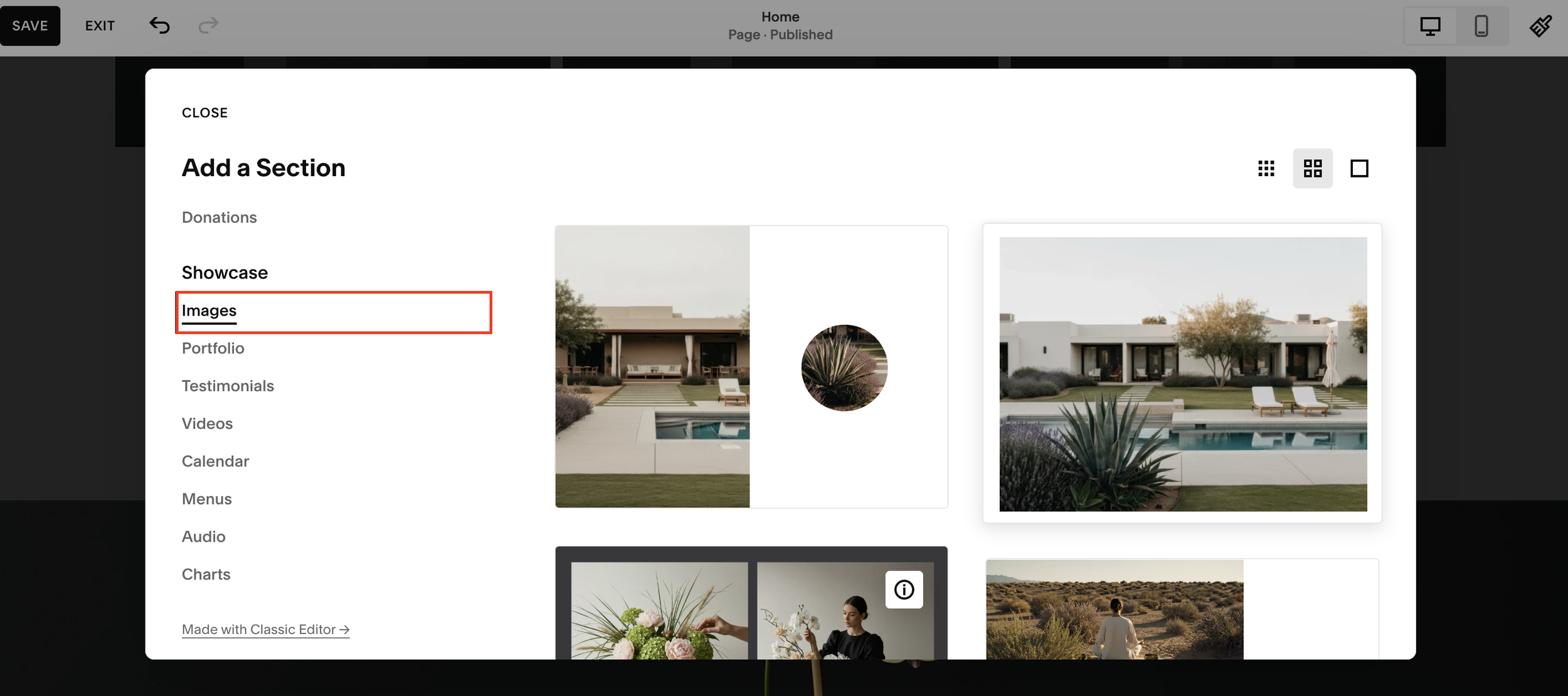
Add a new section
Go to Images
Choose any section with the small image icon, these are gallery sections
Insert the gallery section into your page - Any gallery section in Squarespace can support lightbox functionality.
Step 2: Enable the Lightbox Option
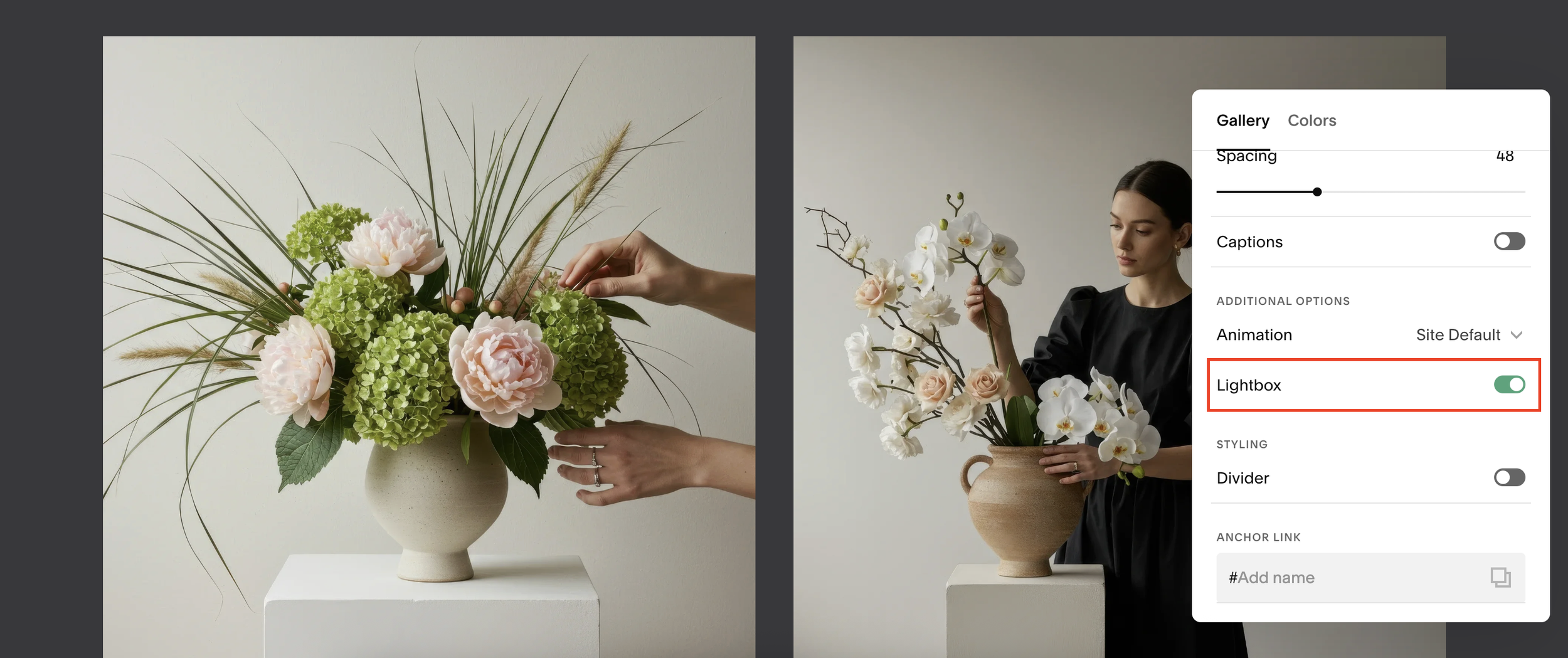
Hover over the gallery section and click Edit Section
Scroll to Additional Options
Toggle Lightbox ON
Click Save
Exit the editor
That’s it, the lightbox is now active.
How the Lightbox Works for Visitors
Once enabled:
Clicking any image opens it in a full-size popup
Visitors can cycle through all images in the gallery
Clicking the X closes the lightbox and returns them to the page
This creates a clean, professional browsing experience without navigating away from the page.
Why Use Lightbox Galleries?
Using a lightbox gallery in Squarespace helps:
Improve user experience
Showcase images more effectively
Keep visitors engaged longer
Make portfolios feel more premium and interactive
It’s a small setting that makes a big visual difference.
Final Thoughts
If you’ve been wondering how to make images pop up when clicked in Squarespace, the lightbox feature is exactly what you’re looking for, and it’s already built in.
Just remember:
Use a gallery section
Turn on Lightbox under Additional Options
Save and test your page
