


Fixing Broken Links in Squarespace
Broken links are a common issue on Squarespace websites, especially if you’ve deleted pages, changed URLs, or recently run a broken link checker. While they might seem minor, broken links can negatively impact user experience, SEO, and trust.
In this guide, you’ll learn:
What a broken link looks like in Squarespace
How to identify internal vs external broken links
How to quickly fix broken links inside the Squarespace editor
What Is a Broken Link in Squarespace?
A broken link is a link that no longer leads to a valid destination. When clicked, it typically sends users to a 404 error page, which means the page doesn’t exist.
Broken links usually happen when:
A page is deleted or renamed
A URL slug is changed
An external website removes or moves a page
A link is typed incorrectly
Start, scale & systemise your web design agency.
I bootstrapped my agency from zero to seven figures. The Margin is the operating system I wish I'd had.
Join The Margin


Need an expert to build your Squarespace website?
Book a free kick-off call with our team to discuss your project requirements in detail.
How to Spot a Broken Link
The most obvious sign of a broken link is when clicking it sends you to a 404 page.
You might discover broken links by:
Clicking through your site manually
Using a broken link checker tool
Noticing visitors landing on your 404 page in analytics
How to Fix Broken Links in Squarespace
Fixing broken links in Squarespace is quick and doesn’t require any coding.
Step 1: Edit the Page With the Broken Link
Open your Squarespace website
Navigate to the page containing the broken link
Click Edit
Highlight the linked text or button
Click Edit Link
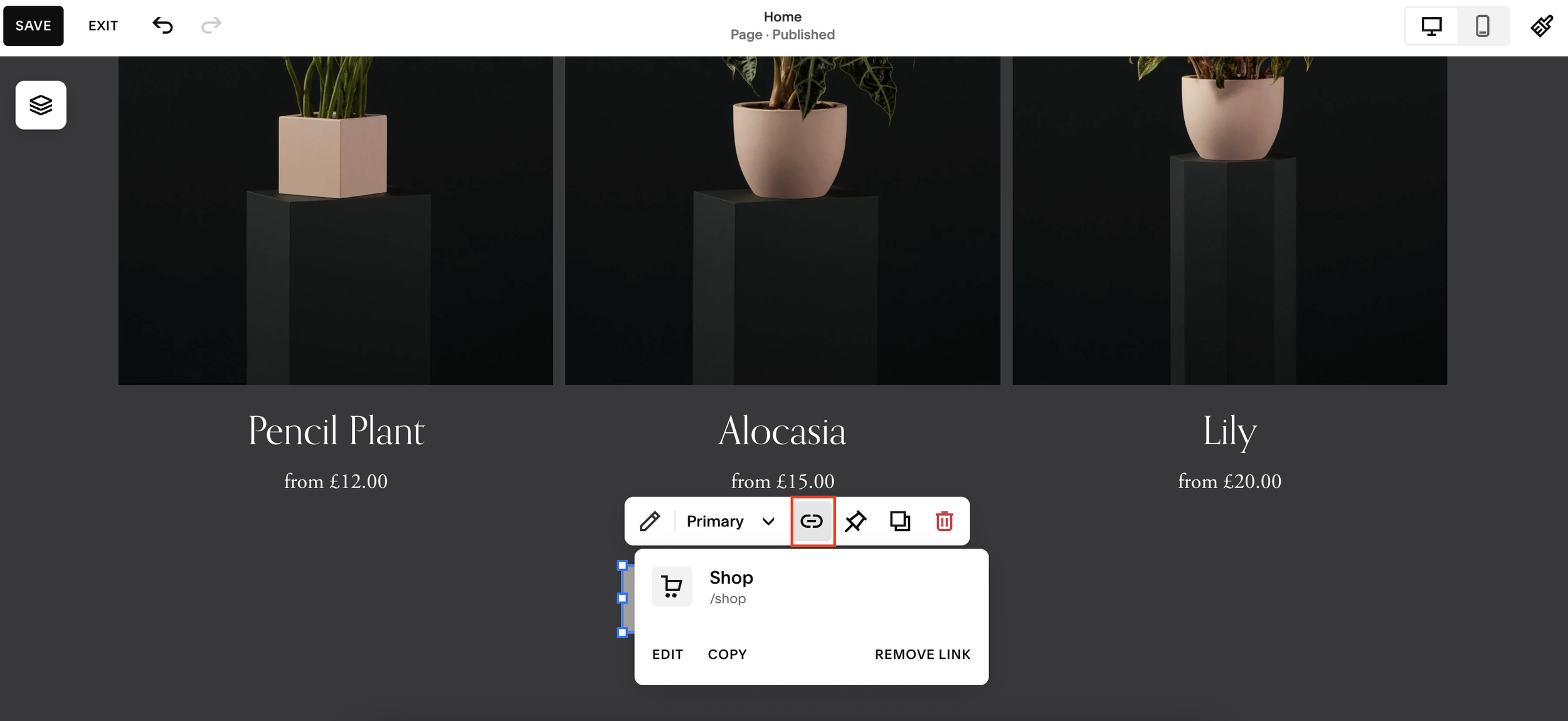
Step 2: Identify the Type of Broken Link
Internal links usually start with a forward slash (/page-name)
External links point to another website and often open in a new tab
If it’s an internal link, you’ll typically see a broken URL slug after the slash.
Step 3: Fix or Replace the Link
You have two options:
Option 1: Re-link to an Existing Page
Click the X to remove the broken link
Type / and select the correct page from your site
Or manually enter the correct page path (e.g. /home)
Option 2: Redirect to a Different Page
If the original page no longer exists, redirect users to:
Your homepage
A related page
A key landing page
Once updated:
Click outside the link field
Click Save
Step 4: Test the Link
After saving:
Click the link again
Confirm it goes to the correct page instead of a 404 error
Internal vs External Broken Links
Internal broken links lead to your own site’s 404 page
External broken links lead to another website’s 404 page
While both should be fixed, internal links are especially important for SEO and site structure.
Why Fixing Broken Links Matters for SEO
Broken links can:
Frustrate visitors
Increase bounce rates
Reduce search engine trust
Disrupt site navigation
Regularly checking and fixing broken links helps keep your Squarespace site healthy and user-friendly.
Final Thoughts
If you’ve come across a broken link on your Squarespace website, fixing it is usually just a matter of updating the URL in the editor. No plugins or custom code required.
Quick recap:
Edit the page
Click the broken link
Replace it with a valid internal or external URL
Save and test
