


Change Your Image Settings on Squarespace
If you’re using Squarespace, there’s one image setting you really need to know about and it can have a big impact on your website’s performance. In this guide, I’ll show you how to change your image settings on Squarespace, specifically how to enable or disable WebP image formats.
Even though there’s only one setting involved, it’s an important one, so let’s walk through it step by step.
What Are WebP Images on Squarespace?
WebP is a modern image format developed by Google. It’s designed to make images smaller in file size while keeping high visual quality, which helps websites load faster.
By default, Squarespace automatically serves images as WebP when possible. This can improve page speed and performance, which is great for user experience and SEO.
Start, scale & systemise your web design agency.
I bootstrapped my agency from zero to seven figures. The Margin is the operating system I wish I'd had.
Join The Margin


Need an expert to build your Squarespace website?
Book a free kick-off call with our team to discuss your project requirements in detail.
How to Change Image Settings on Squarespace
Changing this setting only takes a few clicks. Here’s how to do it:
Log in to your Squarespace site
Click Settings (the cog icon)
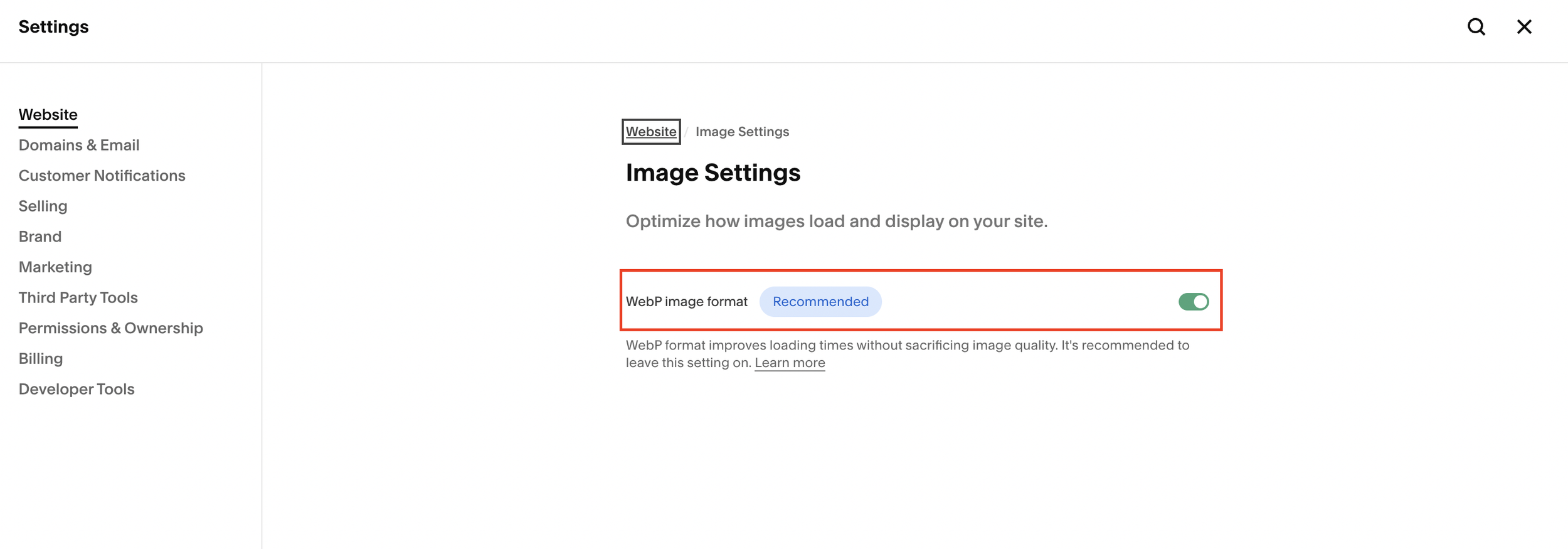
Under Website, select Image Settings
Scroll down to the Image Settings section
Look for the WebP image format toggle
By default, this option is turned on.
How to Disable WebP Images in Squarespace
If you don’t want Squarespace to serve images as WebP:
Toggle WebP Image Format off
Click Save
Once disabled, Squarespace will serve images in their original uploaded format, such as PNG or JPEG.
What Happens If a Browser Doesn’t Support WebP?
This is an important detail.
Even if WebP is enabled, Squarespace automatically handles browser compatibility. If a visitor’s browser doesn’t support WebP, Squarespace will instead serve the image as:
PNG
JPEG
So enabling WebP won’t break your images or cause display issues for visitors.
Should You Use WebP Images on Squarespace?
For most websites, the answer is yes.
Benefits of using WebP on Squarespace:
Faster page load times
Smaller image file sizes
Better overall site performance
Positive impact on SEO
You might consider disabling it only if you have a very specific workflow or compatibility requirement.
Final Thoughts
That’s all there is to changing image settings on Squarespace. It’s a small setting, but it can make a noticeable difference to your site’s performance.
