


How to Add a Blog Collection to Squarespace
If you’ve recently tried to add a blog in Squarespace and felt completely lost, you’re not alone.
Squarespace has quietly updated the way you add blog collections, and the process is now different from older tutorials. That’s why many users are confused when they can’t find the same options anymore.
In this guide, we’ll walk you through the new method to add a blog to your Squarespace website, step by step.
Why the Blog Setup Process Changed
Squarespace frequently updates its interface to improve usability, but sometimes that means:
Menu items get renamed
Features move to new sections
Older tutorials become outdated
Previously, you could directly add a “Blog” collection from a clear menu option. Now, it’s been reorganised under a different category.
Where to Find the Blog Feature Now
The key change is this:
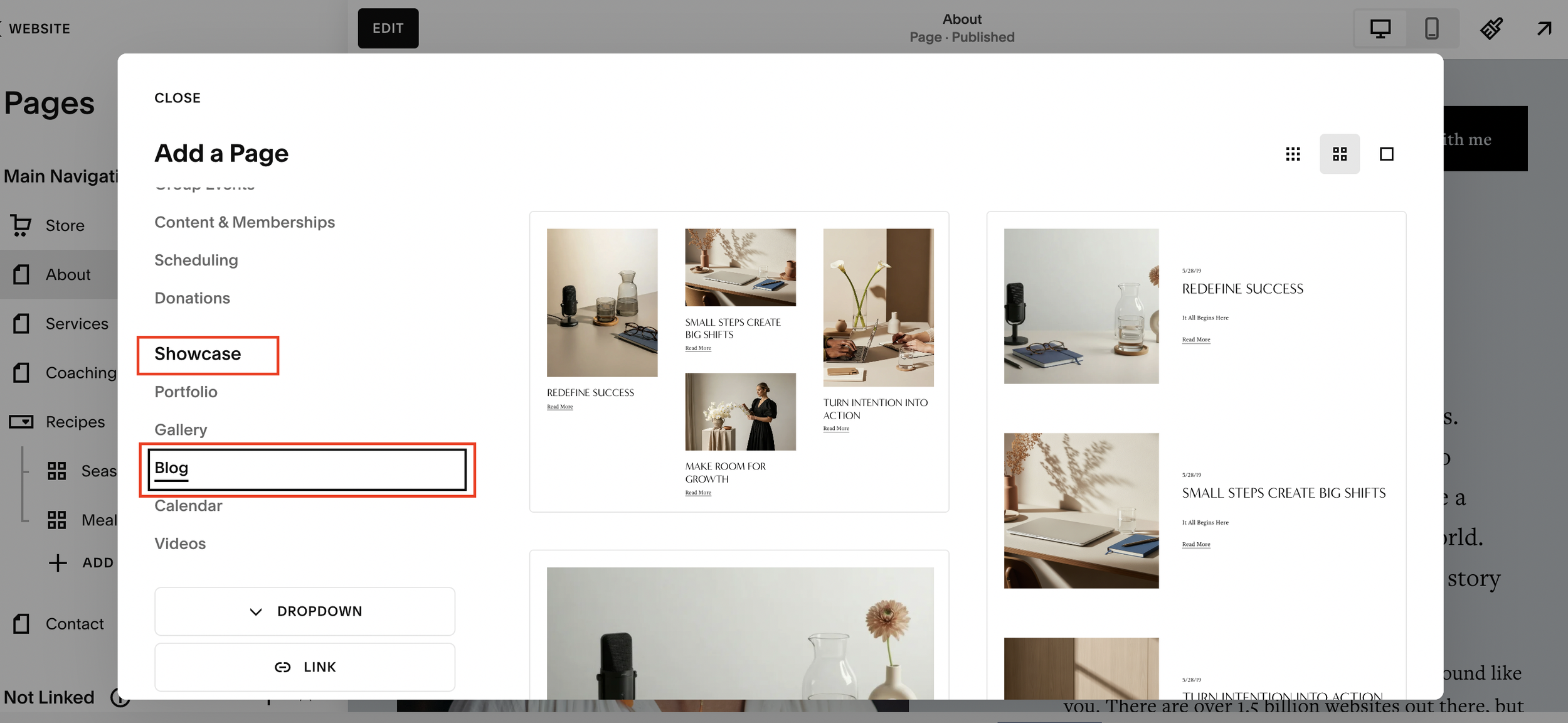
Blogs are now located under “Showcase” instead of a direct “Blog” option
This small shift is what’s causing most of the confusion.
Start, scale & systemise your web design agency.
I bootstrapped my agency from zero to seven figures. The Margin is the operating system I wish I'd had.
Join The Margin


Need an expert to build your Squarespace website?
Book a free kick-off call with our team to discuss your project requirements in detail.
Step-by-Step: How to Add a Blog in Squarespace
Follow these updated steps to add a blog to your site:
1. Go to Pages
From your Squarespace dashboard, click on Pages.
You’ll see sections like:
Main Navigation
Not Linked
2. Choose Where Your Blog Will Live
Decide where you want your blog to appear:
Main Navigation - Shows in your website menu
Not Linked - Hidden from navigation (useful for drafts or private content)
If you want your blog visible in your site menu, add it under Main Navigation.
3. Click the “+” Button
Click the plus (+) icon in your chosen section.
This opens the updated content menu.
4. Go to “Showcase”
Instead of seeing “Blog” immediately, you’ll now see categories.
Click on Showcase
5. Select “Blog”
Inside Showcase, you’ll find the Blog option.
Click it to create your blog collection.
6. Name Your Blog
Give your blog a name, for example:
Journal
News
Insights
Articles
This name will appear on your site navigation.
7. Remove Demo (Filler) Posts
Squarespace automatically adds example posts.
To clean things up:
Select the demo posts
Click Delete
Now you’ve got a fresh, empty blog ready to go.
What Is a Blog Collection in Squarespace?
In Squarespace, a blog isn’t just a page, it’s a collection.
That means you can:
Add multiple posts
Organise content by categories or tags
Automatically generate post pages
Display posts in different layouts
Common Mistakes to Avoid
Here are a few things that trip people up:
Looking for a “Blog” button in the old location
Not checking inside the Showcase section
Forgetting to delete demo content
Adding the blog to “Not Linked” and wondering why it’s not visible
Pro Tip: Plan Your Blog Structure First
Before adding posts, think about:
Your categories (e.g. Tips, Tutorials, News)
Your posting frequency
Your URL structure
This will help your blog stay organised and improve SEO performance.
Final Thoughts
Adding a blog in Squarespace is still quick and easy, once you know where to look.
The new pathway might not be obvious at first, but after using it once, it becomes second nature.
If you’re following older tutorials, just remember: the process has changed, but the functionality is still there.
