


How to Make an Image a Circle on Squarespace
Creating circular images used to be a frustrating task for Squarespace users. Not long ago, achieving this effect required custom CSS, which meant extra development time and ongoing maintenance, especially difficult for clients who wanted to make updates themselves.
Thankfully, Squarespace has simplified the process. You can now turn any image into a circle in just a few clicks - no coding needed.
In this step-by-step guide, you’ll learn exactly how to create circular images on Squarespace and avoid common issues like stretching or distortion.
Why Use Circular Images?
Circular images are a popular design choice for:
Team member profiles
Testimonials
Portfolio highlights
Feature sections
They create a clean, modern look and help draw attention to key visuals on your website.
Start, scale & systemise your web design agency.
I bootstrapped my agency from zero to seven figures. The Margin is the operating system I wish I'd had.
Join The Margin


Need an expert to build your Squarespace website?
Book a free kick-off call with our team to discuss your project requirements in detail.
Step-by-Step: How to Make an Image Circular in Squarespace
1. Open the Squarespace Editor
Navigate to the page you want to edit
Enter Edit Mode
Find the image you want to transform into a circle.
2. Select Your Image Block
Click on the image
Double-click to open the image settings panel
3. Change the Image Design
Inside the image settings:
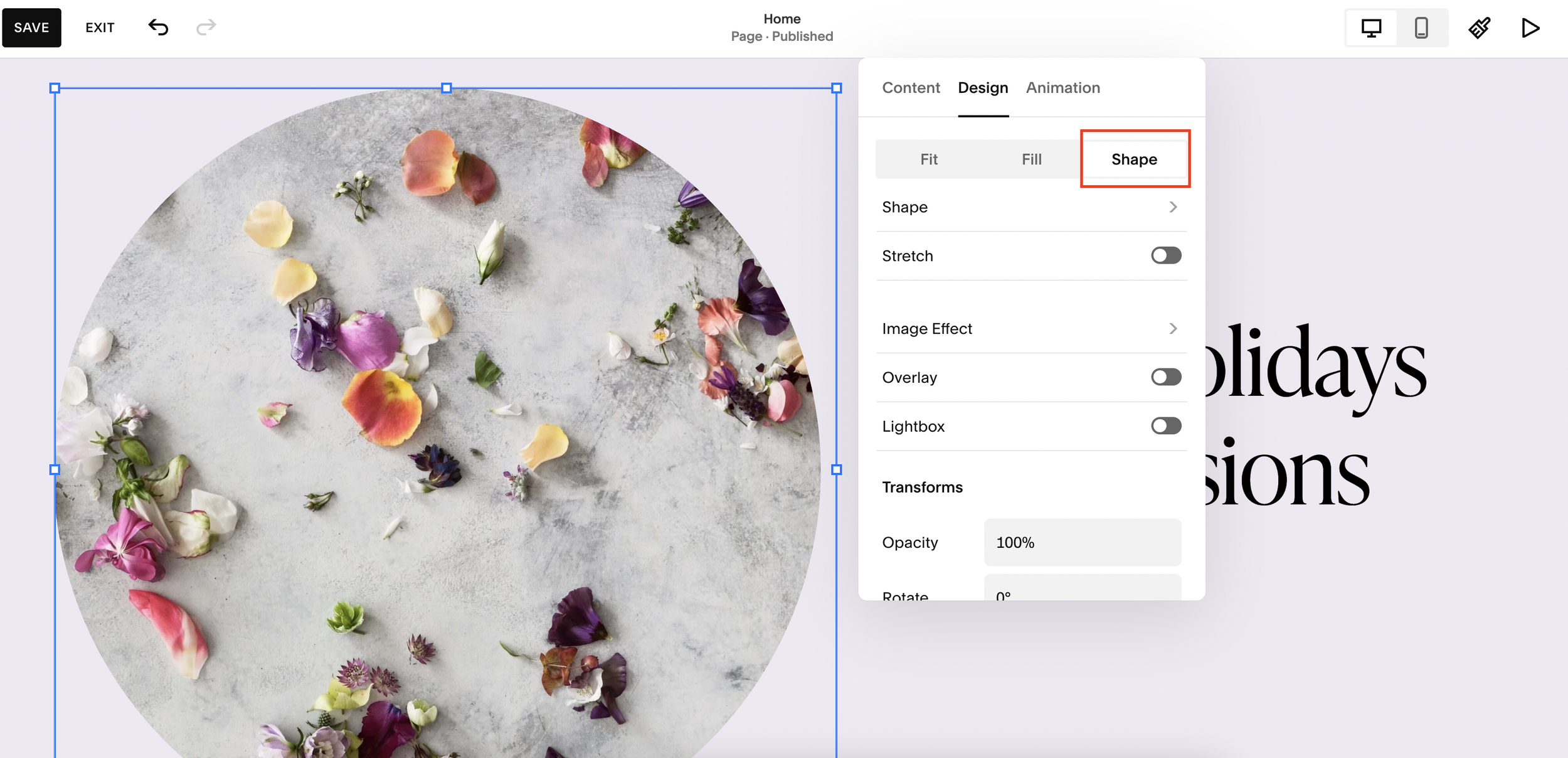
Go to the Design tab
Look for the Shape option
Select Circle
Squarespace will automatically apply a circular crop to your image.
Fixing Common Issues (Stretching & Ovals)
Sometimes, your image may appear stretched or oval-shaped instead of perfectly circular. This usually happens when the image container is resized improperly.
How to Fix It:
Toggle Stretch OFF
Resize the image block manually
Ensure the container is roughly square (equal width and height)
Once adjusted, your image should return to a perfect circle.
Fine-Tune Your Layout
To make your design look polished:
Resize the image so it fits neatly within its section
Drag and reposition the image for proper alignment
Adjust surrounding text or elements to maintain visual balance
For example, you might align your circular image with text above or below it for a clean, professional layout.
Preview and Save
Once you're happy with your changes:
Click Save
Exit the editor
Preview your page
You should now see a clean, circular image displayed as intended.
Key Takeaways
You no longer need CSS to create circular images on Squarespace
Use the Design > Shape > Circle setting
Turn off Stretch to avoid oval distortion
Adjust size and alignment for best results
Final Thoughts
Squarespace continues to make design more accessible, removing the need for complex code and giving users intuitive tools to create professional-looking websites.
With this simple method, you can quickly enhance your site’s visual appeal using circular images, perfect for modern, clean layouts.
