


How to Swap a Classic Editor Section to Fluid Engine on Squarespace
If you’ve been using Squarespace for a while, you’ve likely come across both Classic Editor sections and Fluid Engine sections. Each has its own strengths, but what many users don’t realise is that you can easily convert a Classic Editor section into a Fluid Engine section in just a few clicks.
In this guide, we’ll walk you through exactly how to do it, when to use each editor, and why upgrading to Fluid Engine can give you more design flexibility.
What’s the Difference Between Classic Editor and Fluid Engine?
Before jumping into the tutorial, let’s quickly break down the difference:
Classic Editor
Uses a structured, block-based layout
Content “snaps” into predefined positions
Simpler and faster for basic designs
Limited control over spacing and placement
Fluid Engine
Advanced drag-and-drop grid system
Full control over layout and spacing
Customisable grid sizing
Ideal for modern, flexible designs
Start, scale & systemise your web design agency.
I bootstrapped my agency from zero to seven figures. The Margin is the operating system I wish I'd had.
Join The Margin


Need an expert to build your Squarespace website?
Book a free kick-off call with our team to discuss your project requirements in detail.
How to Add a Classic Editor Section in Squarespace
Although most new sections default to Fluid Engine, you can still add Classic Editor sections.
Method 1: Add a Blank Classic Section
Open your Squarespace editor
Click Add Section
Choose a blank section
Select the Classic Editor option
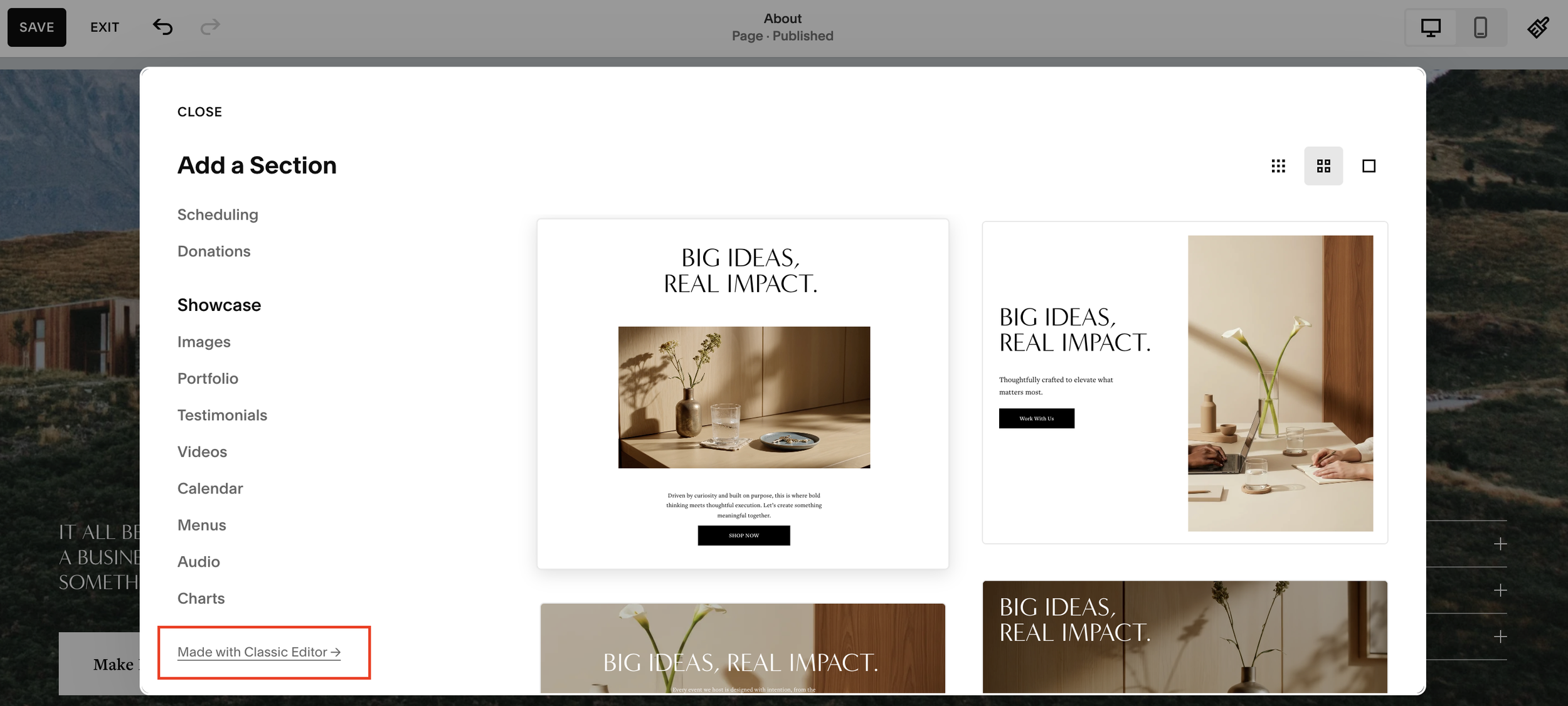
Method 2: Use a Pre-Made Classic Template
Click Add Section
Navigate to “Made with Classic Editor”
Choose any template layout you like
You’ll notice the layout behaves differently, elements snap into place and there’s no visible grid system.
How to Convert Classic Editor to Fluid Engine
Here’s the key part: converting your section.
Step-by-Step Instructions
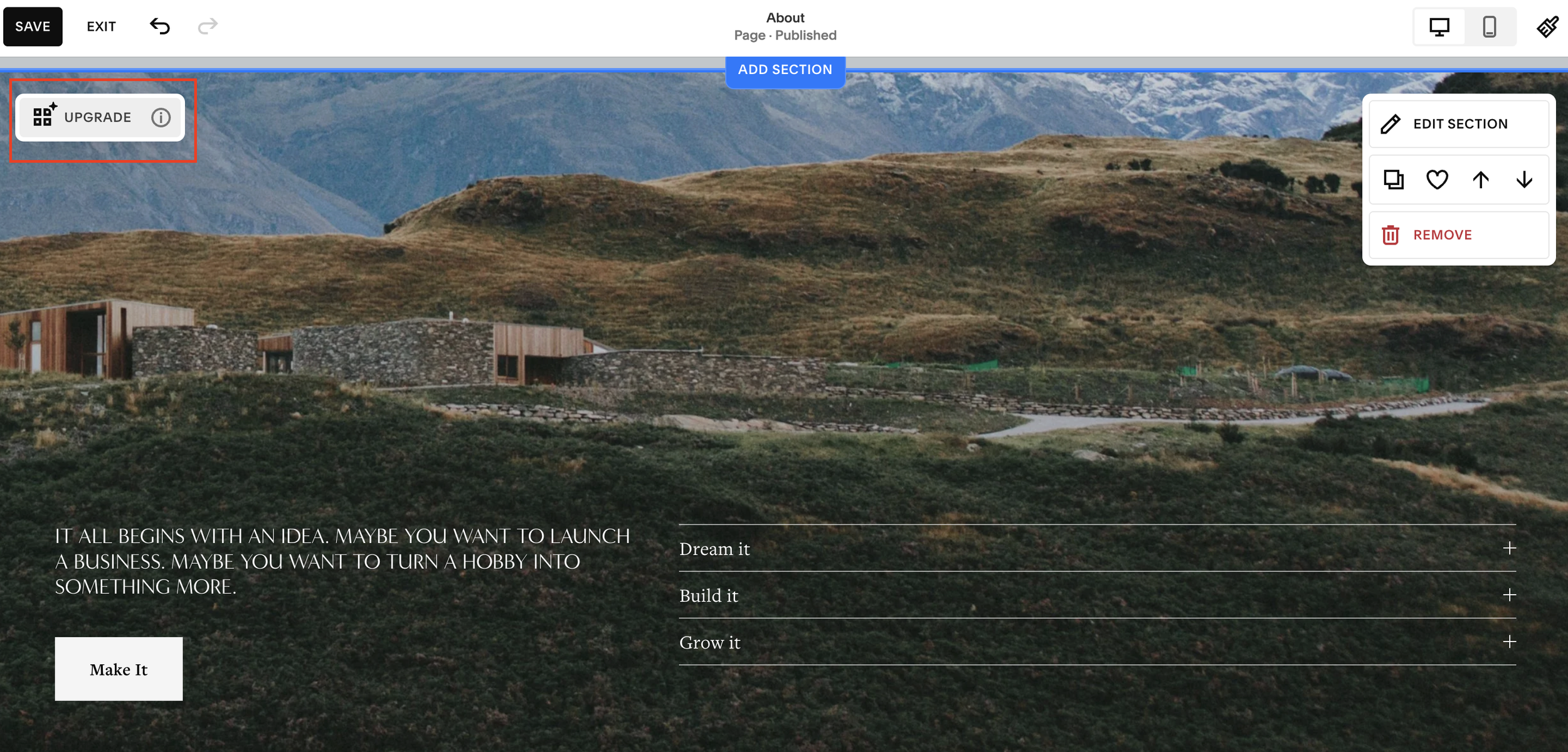
Click on your Classic Editor section
Look for the “Upgrade” button
Click it to instantly convert the section into Fluid Engine
That’s it, your section is now fully editable using Fluid Engine.
What Happens After You Upgrade?
Once converted, you’ll unlock several powerful features:
Grid visibility (press “G” to toggle)
Precise element placement
Custom spacing control
Flexible resizing of content blocks
For example, you can:
Move elements freely across the grid
Adjust spacing between text and images
Create more dynamic, modern layouts
Can You Revert Back to Classic Editor?
Yes, but only under one condition.
If you haven’t saved your changes, you can undo the upgrade and return to the Classic Editor version.
Once saved, the change becomes permanent.
Benefits of Fluid Engine:
Better design precision
Improved visual hierarchy
More creative freedom
Modern, responsive layouts
If you’re working on an older Squarespace 7.1 site that still uses Classic Editor, upgrading sections individually is a great way to modernise your design without rebuilding everything.
Final Thoughts
Converting a Classic Editor section to Fluid Engine in Squarespace is quick, easy, and reversible (as long as you don’t save immediately). Whether you want more control over spacing or a fully custom layout, Fluid Engine is a powerful upgrade worth exploring.
