


How to Use Preview Mode on Your Squarespace Website (EASY!)
If you’ve ever built a website using Squarespace, you’ll know one of the most frustrating parts of editing used to be previewing your changes.
Until recently, the process was clunky, but now, Squarespace has introduced a game-changing feature called Preview Mode, and it’s going to save you time and streamline your workflow.
Let’s break down exactly what it is, how it works, and why it matters.
What Is Squarespace Preview Mode?
Preview Mode allows you to view your website exactly as it will appear live, without leaving the editor.
That means:
No more saving just to check changes
No more exiting the page editor
No more switching between tabs
You can now stay inside the editor and instantly see a clean, live-style version of your page.
Start, scale & systemise your web design agency.
I bootstrapped my agency from zero to seven figures. The Margin is the operating system I wish I'd had.
Join The Margin


Need an expert to build your Squarespace website?
Book a free kick-off call with our team to discuss your project requirements in detail.
How to Use Preview Mode in Squarespace
Using Preview Mode is simple and takes just a few clicks:
Step-by-Step Guide
Go to Pages in your Squarespace dashboard
Select the page you want to edit
Click Edit
Make your changes (move elements, resize blocks, adjust layouts)
Click Preview
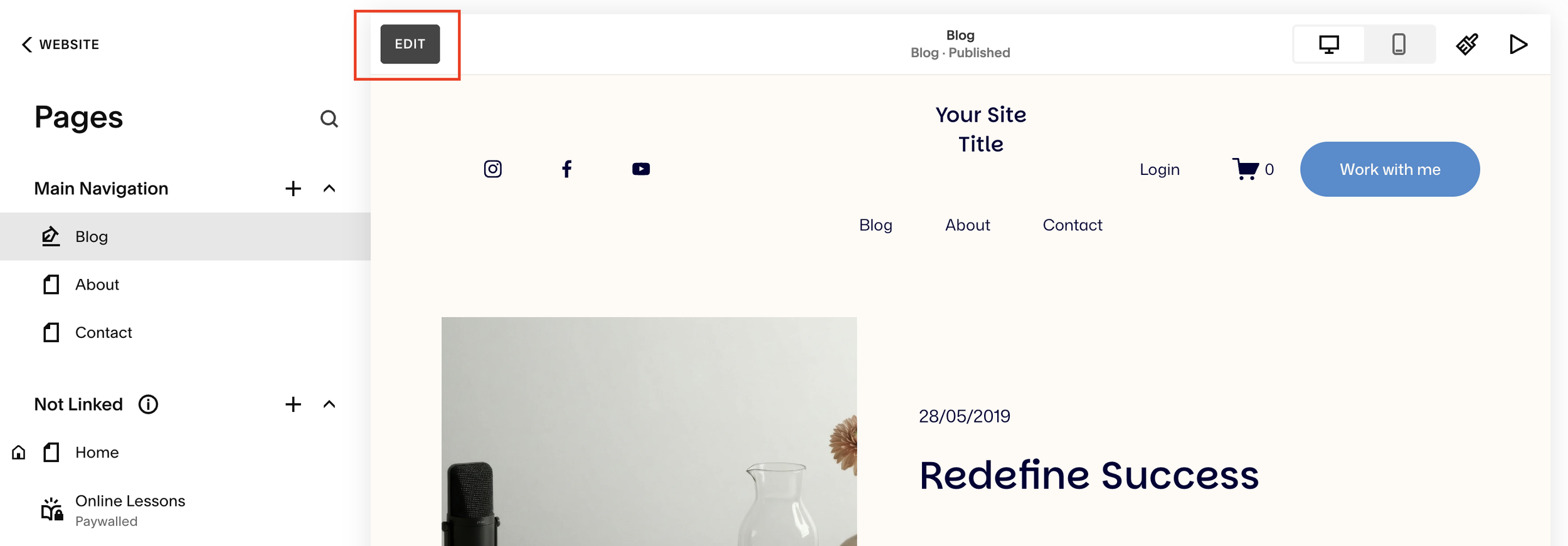
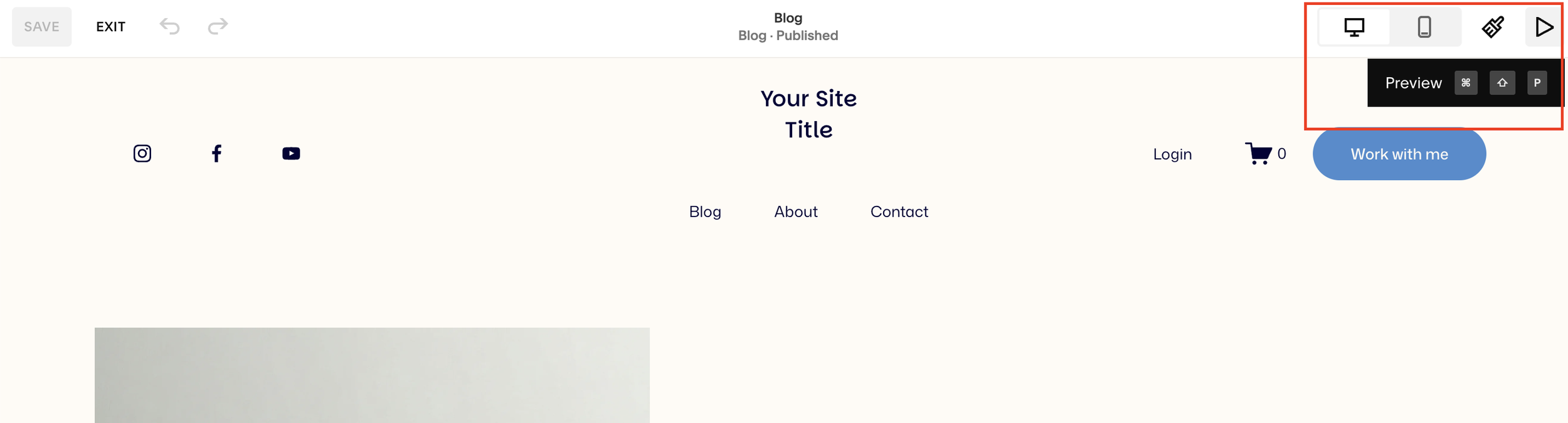
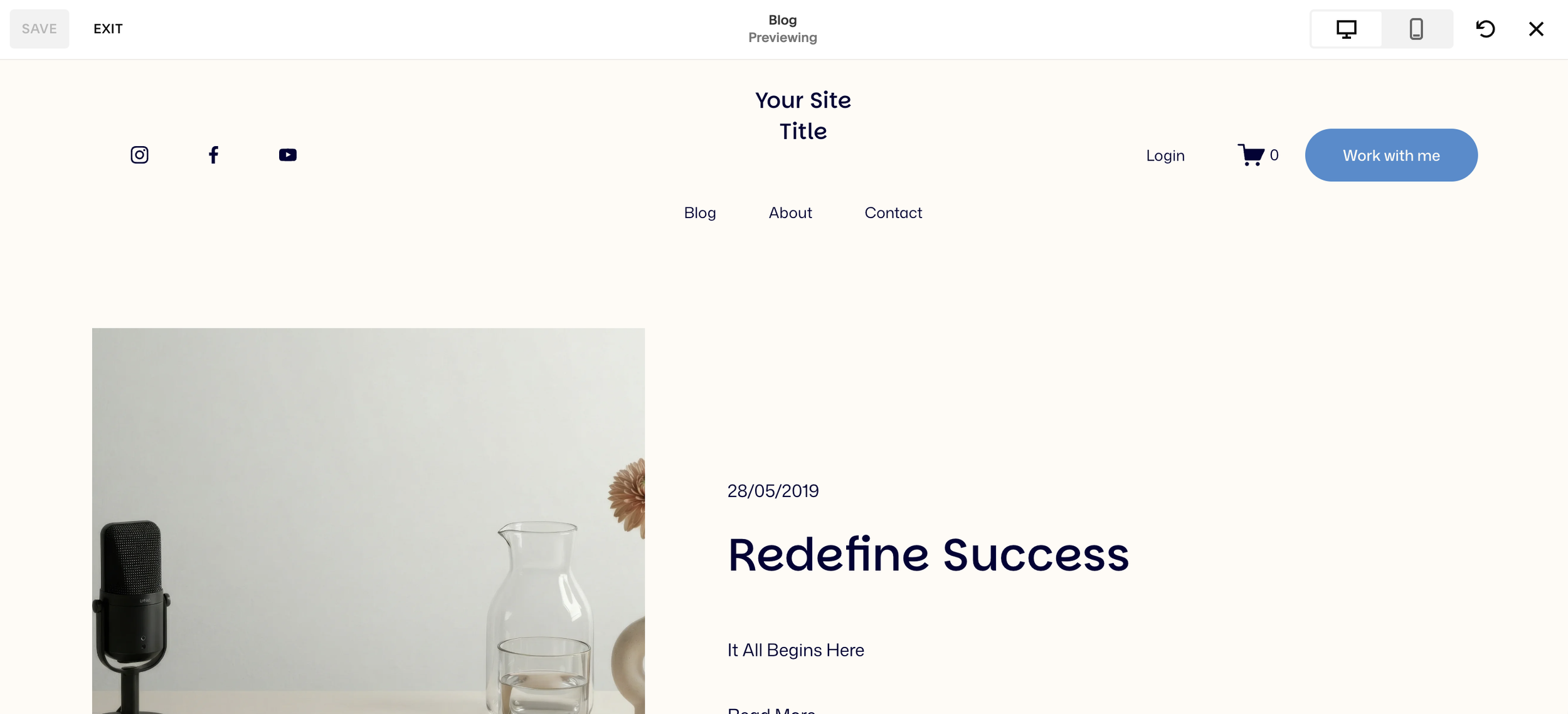
That’s it, you’ll now see your page exactly how visitors will experience it.
What You Can Do in Preview Mode
Preview Mode isn’t just a static view, it’s actually very useful for fine-tuning your design.
Here’s what you can do:
See Your Site Without the Grid
The editor grid disappears, giving you a true-to-life version of your layout.
Test Animations
Hit refresh in preview to:
Replay animations
Check transitions
Ensure everything loads smoothly
Check Mobile Responsiveness
Quickly switch views to see how your design looks on:
Mobile
Tablet
Desktop
Review Changes Before Saving
Not happy with your edits? No problem:
Exit preview
Adjust your layout
Preview again
All without committing changes.
Why Preview Mode Is a Big Deal
This update might seem small, but it solves a major workflow issue.
Before Preview Mode:
Constant saving
Interruptions to your editing flow
Slower design process
After Preview Mode:
Faster edits
Real-time visual feedback
Better design decisions
In short, it makes building a Squarespace site more intuitive and efficient.
Pro Tip: Use Preview Before Every Save
A good habit to build:
Always preview your page before hitting Save & Exit
This helps you:
Catch alignment issues
Spot awkward spacing
Ensure your design looks polished
Final Thoughts
Squarespace’s Preview Mode is a simple but powerful upgrade that dramatically improves the editing experience.
Whether you’re tweaking layouts, testing animations, or checking mobile responsiveness, this feature lets you work smarter without breaking your flow.
