


Change Your Website's Social Sharing Image on Squarespace
One feature that often gets overlooked on Squarespace websites is the social share image. While it’s not the highest priority when building a site, adding one gives your website an extra layer of polish and professionalism.
In this guide, I’ll show you where to add a social share image in Squarespace and how to set it up properly so your site looks great when shared on platforms like Facebook, LinkedIn, WhatsApp, or X.
What Is a Social Share Image?
A social share image is the image that appears when someone shares your website link on social media or messaging apps. Along with your site title and description, it forms the first impression people have of your brand online.
When done well, it can:
Increase click-through rates
Improve brand consistency
Make your website look more professional
Enhance how your site appears on social platforms
Start, scale & systemise your web design agency.
I bootstrapped my agency from zero to seven figures. The Margin is the operating system I wish I'd had.
Join The Margin


Need an expert to build your Squarespace website?
Book a free kick-off call with our team to discuss your project requirements in detail.
Where to Find Social Sharing Settings in Squarespace
There are two easy ways to access social sharing settings in Squarespace.
Option 1: Use the Quick Search (Fastest Method)
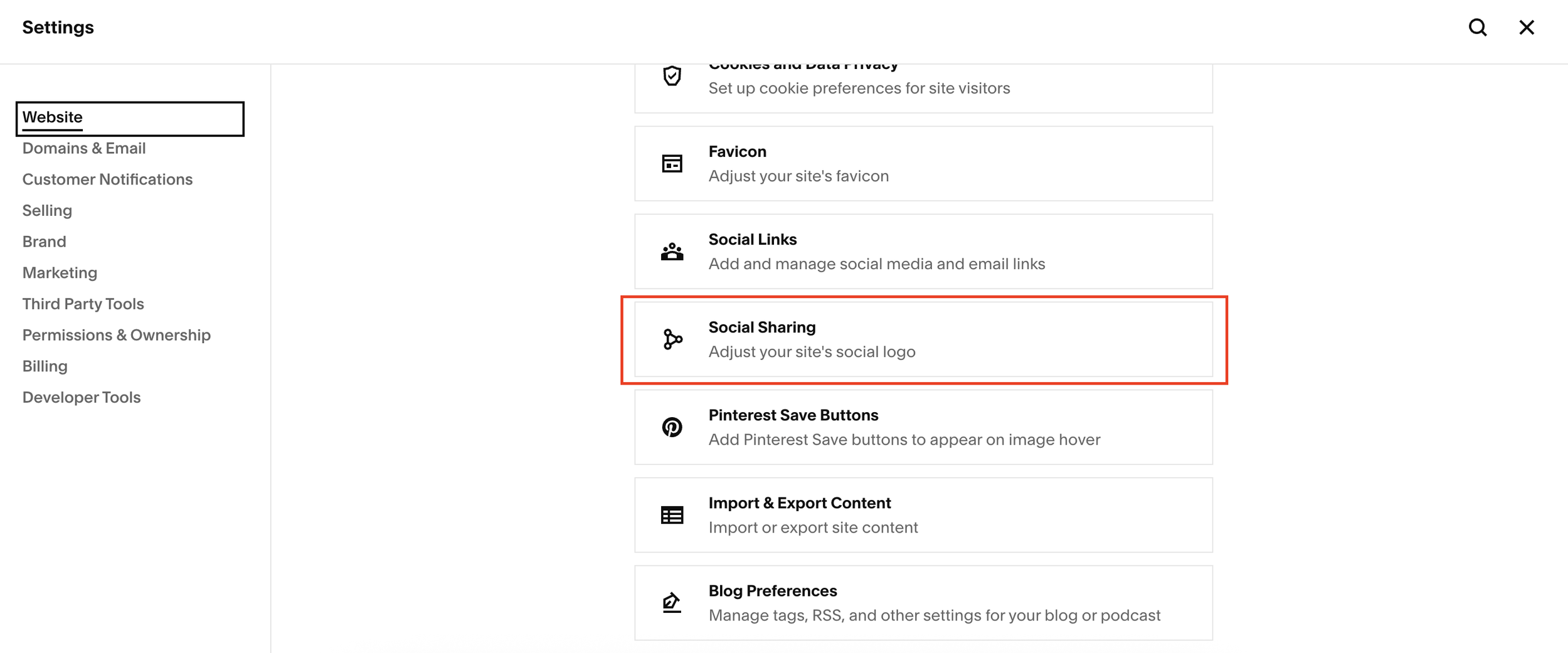
From your Squarespace dashboard, type /social sharing
This takes you directly to the correct settings page
Option 2: Navigate Through Settings
Go to Settings
Under Website, click Social Sharing
Both options lead to the same place.
How to Add a Social Share Image in Squarespace
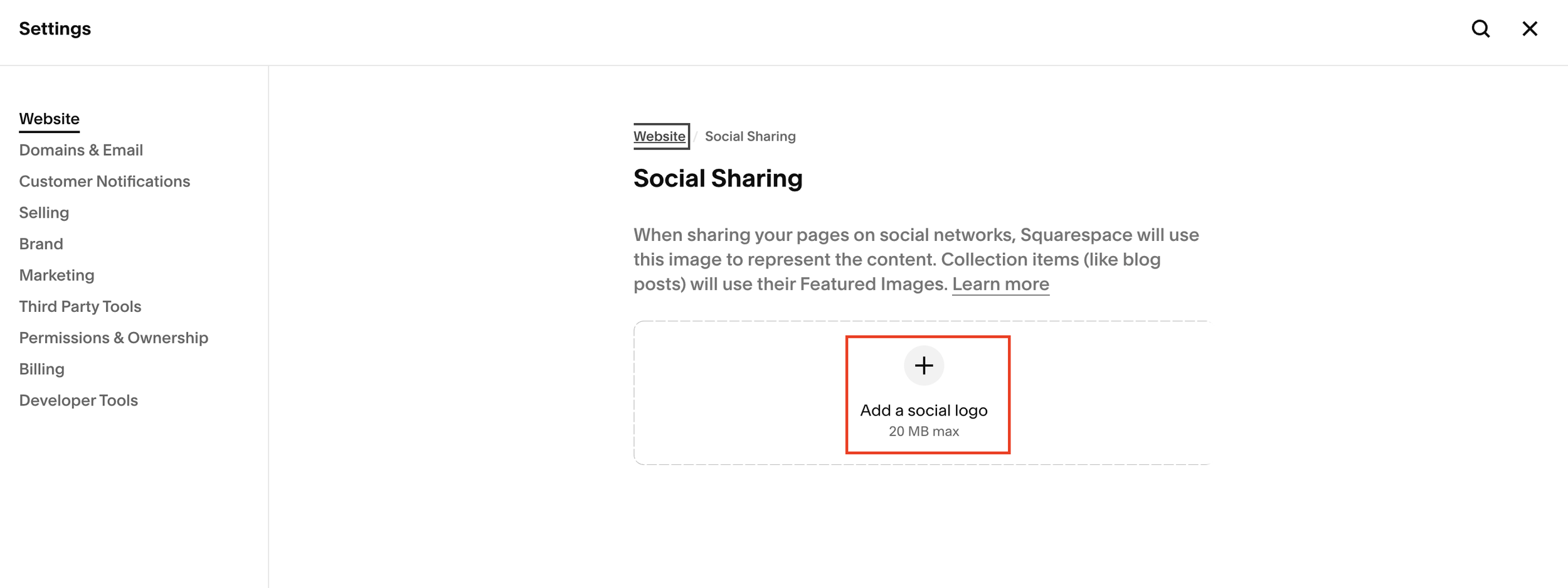
Once you’re in the Social Sharing settings, follow these steps:
Locate the Social Share Image section
Upload your chosen image file
Review your site title and description (these appear with the image)
Click Save
That’s it. Squarespace will process the image and apply it across your site.
How Long Does It Take to Update?
There’s no exact timeframe, but in most cases the social share image updates fairly quickly. Social platforms may cache previews, so if it doesn’t update immediately, give it a little time or try re-sharing the link.
What Makes a Good Social Share Image?
Your social share image is how your website is presented to the world, so it’s worth getting right. A good image should:
Be visually clean and on-brand
Include your logo or business name
Use readable text (if any)
Match your website’s overall style
If you want inspiration, try sharing your own site link into platforms like LinkedIn or Facebook and see how it appears. You can also look at well-designed Squarespace sites to guide your design choices.
Final Thoughts
Adding a social share image in Squarespace is a small step that makes a big difference. It improves how your website looks when shared and helps reinforce your brand across social platforms.
