


Customize Your Dashboard's Sidebar on Squarespace
If you’ve been using Squarespace for a while, you’ve probably noticed that the dashboard sidebar has become increasingly bloated. As Squarespace continues to expand its ecosystem, adding tools like email campaigns, donations, scheduling, and finance, the sidebar can quickly become cluttered, especially if you don’t use those features.
For many designers and business owners, this clutter can be distracting and slow down day-to-day work. The good news? Squarespace allows you to customize and hide sidebar items, helping you keep your dashboard clean, minimal, and focused.
In this guide, I’ll show you exactly how to customize your Squarespace dashboard sidebar, hide unused features, and restore them anytime you need.
Why You Might Want to Declutter Your Squarespace Sidebar
Many Squarespace users, especially clients I work with, prefer a simpler, distraction-free dashboard. If you’re not using certain features, seeing them every time you log in can feel unnecessary.
Customizing your sidebar allows you to:
Reduce visual clutter
Focus on the tools you actually use
Create a more streamlined workflow
Keep your Squarespace dashboard minimal and tidy
And best of all, nothing is permanently removed, you can add features back at any time.
Start, scale & systemise your web design agency.
I bootstrapped my agency from zero to seven figures. The Margin is the operating system I wish I'd had.
Join The Margin


Need an expert to build your Squarespace website?
Book a free kick-off call with our team to discuss your project requirements in detail.
How to Customize the Squarespace Dashboard Sidebar
Step 1: Open Your Squarespace Dashboard
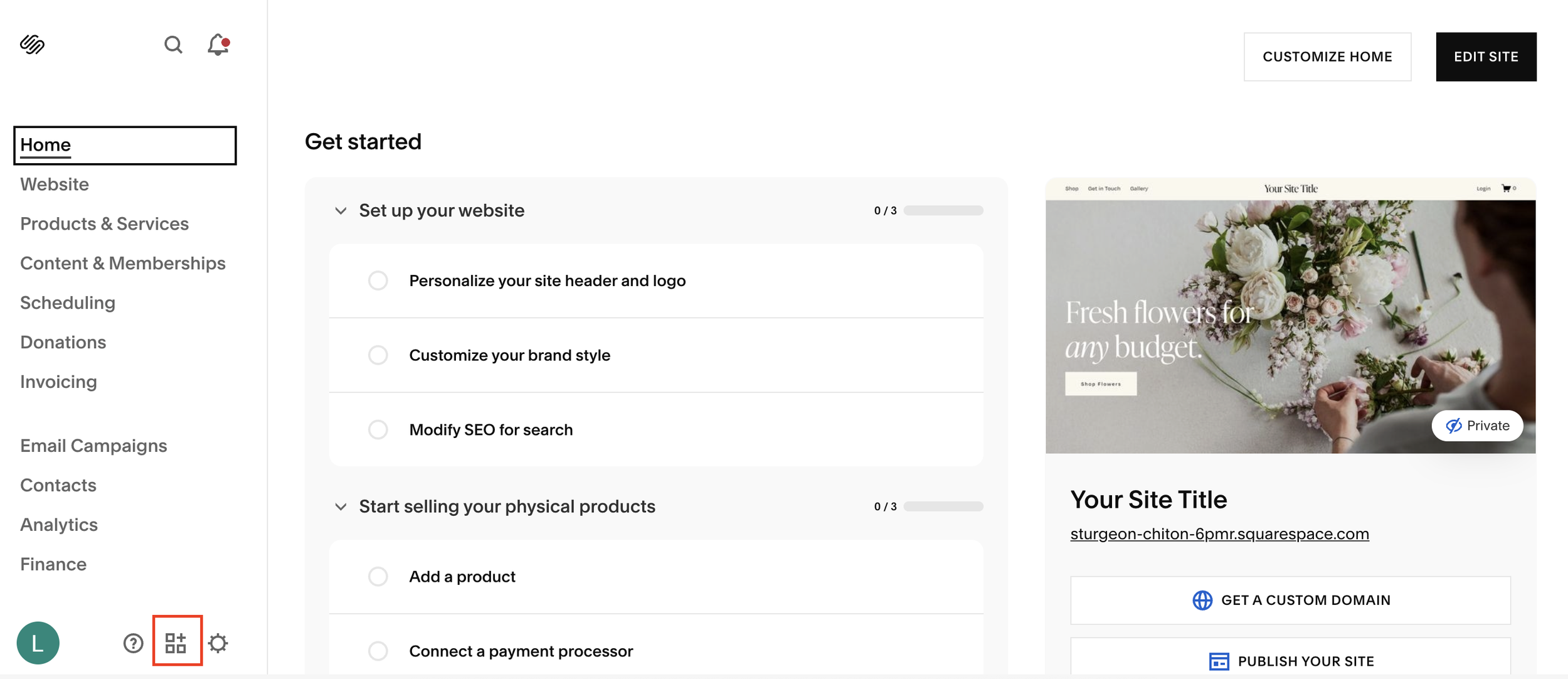
Log in to Squarespace and head to your Home Dashboard. This is where you’ll see the sidebar navigation on the left-hand side.
Step 2: Click “Customize Sidebar”
At the bottom of the sidebar, you’ll see a customize icon. Click this to enter sidebar customization mode.
This allows you to:
Reorder items
Toggle features on or off
Decide what appears in your main navigation
Step 3: Reorder Sidebar Items by Importance
If there are tools you use frequently, such as Pages, Design, or Commerce, you can drag and reorder items so your most-used features appear at the top.
This is especially useful if you manage multiple websites or client projects.
Step 4: Hide Unused Squarespace Features
To remove clutter, simply toggle off the features you don’t use, such as:
Email Campaigns
Donations
Scheduling
Other optional Squarespace services
Hidden items will display a small icon indicating they’re no longer visible in the sidebar.
Note: Some items (like Finance or Email Campaigns) can’t currently be removed completely, even if unused. Hopefully, Squarespace will allow more flexibility in the future.
Step 5: Exit - No Need to Save
Once you’re happy with your sidebar, there’s no save button so just click the X to exit
Your dashboard instantly updates, revealing a clean, minimal Squarespace interface.
How to Add Sidebar Features Back Later
If you decide to use a feature again, such as donations or email marketing, you can re-enable it at any time:
Click Customize Sidebar
Toggle the feature back on
Exit the menu
This flexibility means your dashboard can evolve as your business grows.
Final Thoughts: A More Minimal Squarespace Experience
Squarespace offers a lot of customization under the hood, and the sidebar is no exception. Whether you want a stripped-back dashboard or full access to the entire Squarespace ecosystem, you’re in control.
By hiding unused features and prioritizing the tools you rely on, you can:
Work faster
Stay focused
Enjoy a cleaner design experience
